
Accounting
The accounting dashboard: banks and cash, what we are owed and what we owe, ledger, reconcile the bank, collections and payments, profit and loss, review and the year's result with Excel and PDF.
- Technical name
gerp_contabilidad- Author
- GestioERP · SIAM Cloud
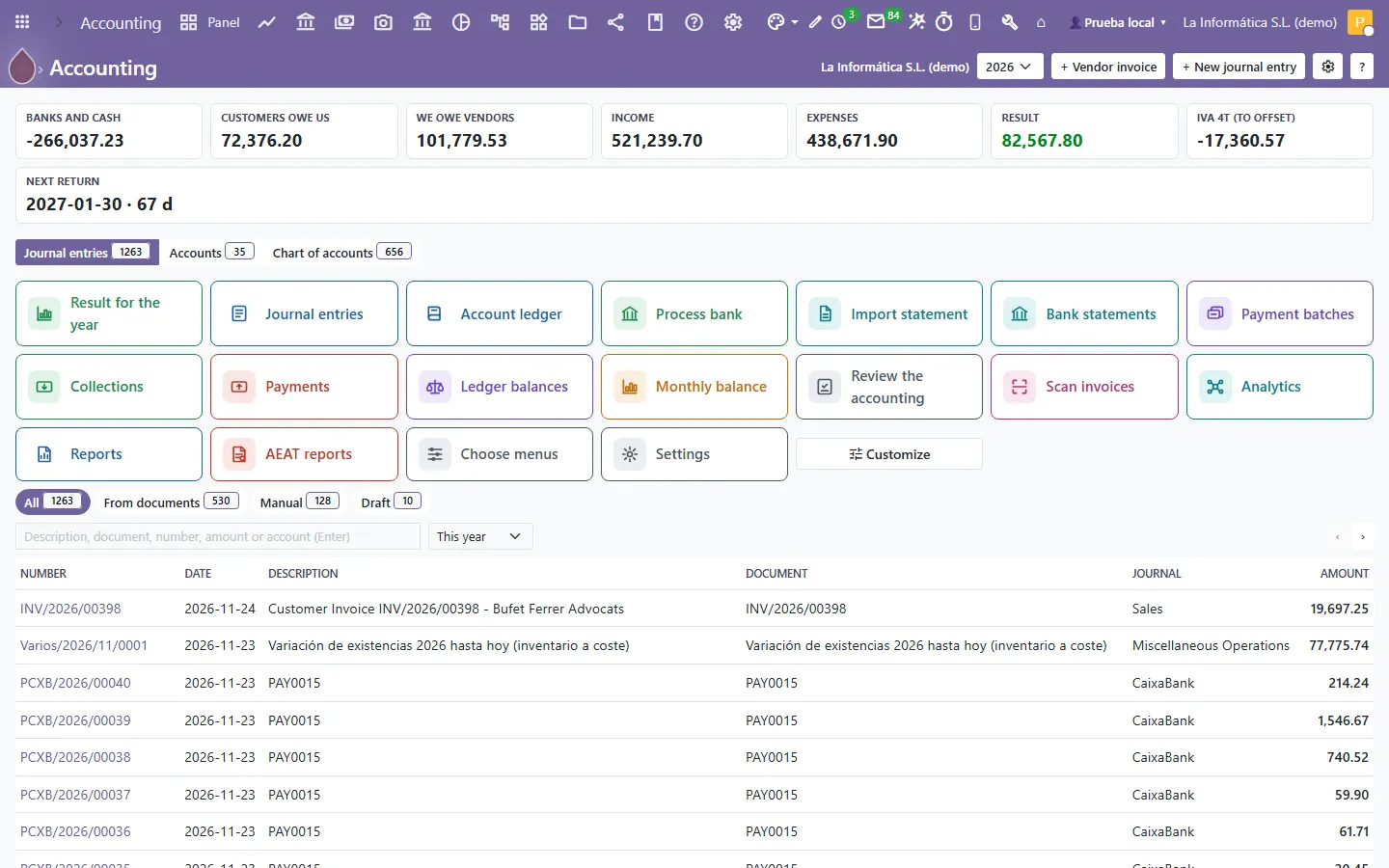
Accounting dashboard
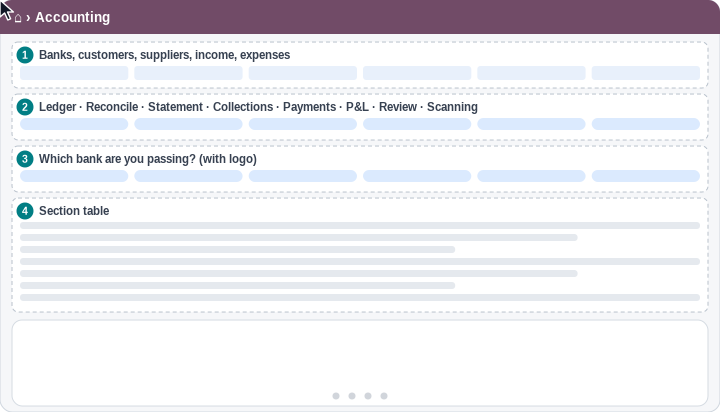
The figures at the top and a button for each task.
- Up-to-date balances; press a figure to see its detail.
- Each button is a section (given by permissions).
- When reconciling, choose the bank: only those with movements appear, with their logo.
- The list of the open section, with search box and filters.
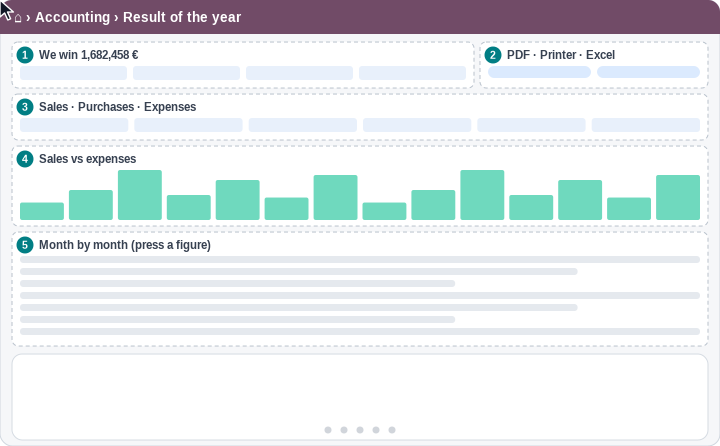
Result of the year
«We win» or «We lose», the cards for sales, purchases and expenses against the previous year, the chart of sales against expenses and the month-by-month table. Press any amount for its detail by group or sub-account; it comes out in Excel with a chart, in PDF or to the printer.
- The year's result and the margin.
- Export.
- Each concept against the previous year.
- Bars per month; the current month highlighted.
- Press an amount: the detail by group or subaccount appears below.
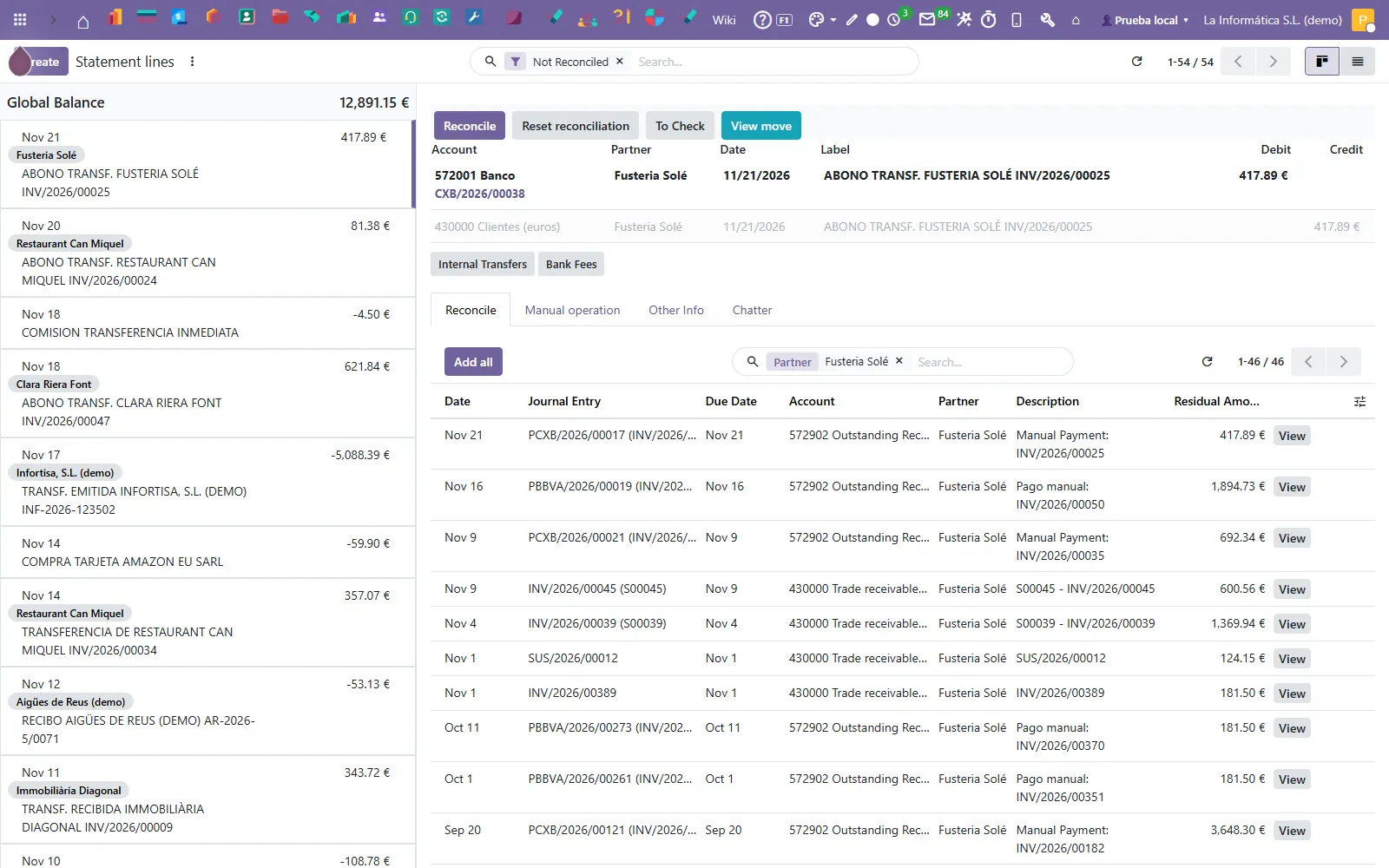
The bank statement
Accounting › Statement: upload the bank file (Norma 43, CAMT, OFX, Excel) or fetch it through the bank connection, then reconcile it.
Pending collections
Accounting › Collections: pending customer invoices with their due date; press one to collect it. The full list is in Sales › Receivables.
Pending payments
Accounting › Payments: pending supplier invoices with their due date; press one to pay it.
The profit and loss
Accounting › Profit and loss: income and expenses by account group in the period, and the result.
The accounting review
Accounting › Review the accounting: list of points to check (invoices without a journal entry, imbalances, unreconciled banks…); press one to see the cases.
The balances
Accounting › Balances: trial balance by account in the period; press one for its ledger.
The new supplier invoice
«+ Supplier invoice» button on the Accounting bar, or scan it in Invoice scanning.
The new journal entry
«+ New journal entry» button on the Accounting bar: journal, date and the debit and credit lines.
The accounting fiscal year
The year selector on the blue Accounting bar changes the financial year on every screen.
The accounting settings
Accounting › Settings: AI provider (Gemini, Claude or OpenAI), its key and model, and the default expense account. Administrator only.
Questions
- How do I see this year's profit?
- Accounting › Year result: profit, cards, monthly chart and month-by-month table. Click an amount for its detail.
- How do I reconcile the bank?
- Accounting › Reconcile: choose the bank and match each line with its invoice or account.
- How do I see a ledger?
- Accounting › Ledger: search the account or partner to see its entries and running balance.
- How do I import a bank statement?
- Accounting › Statement: upload the bank file and then reconcile it.
- How do I see what customers owe?
- Accounting › Collections: unpaid customer invoices; click one to collect.
- How do I see what I owe suppliers?
- Accounting › Payments: unpaid supplier invoices.
- How do I see the profit and loss?
- Accounting › Profit and loss: income and expenses by group.
- How do I check the accounting is right?
- Accounting › Check: points to review; click one to see the cases.