
Expenses with OCR and AI (receipts)
Take the photo of the receipt with the phone, upload it, drag it or forward it by email: the AI reads merchant, tax ID, date, total, VAT and base, currency and description, suggests the category and the employee, and creates the expense with its receipt, grouped in a report to send for approval.
- Where to find it
- Internal users › Purchases › «Expenses: scan receipts with AI and reports» and «Expenses: approve expense reports»
- Technical name
gerp_gastos_ocr- Author
- GestioERP · SIAM Cloud
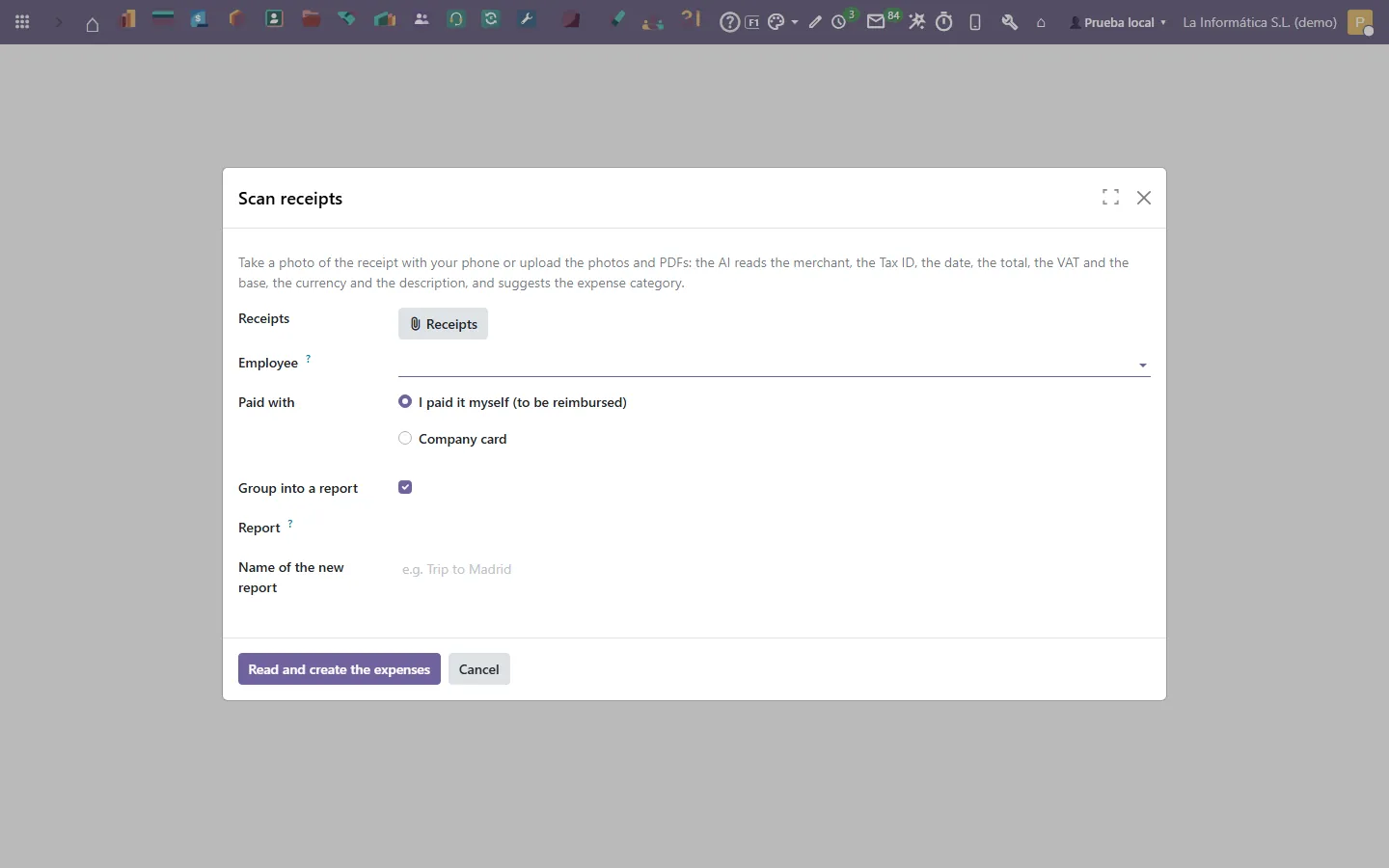
Scan receipts
Purchases › Scan tickets: designed for the phone. Press «Tiques», take the photo (or choose photos and PDF) and «Leer y crear los gastos».
- Take the photo of the receipt.
- Check the employee and payment method.
- Name the report (e.g. «Trip to Madrid»).
- «Read and create the expenses».
- On mobile, «Receipts» opens the camera; on the computer, choose or drag the photos and PDFs.
- Your employee is filled in automatically; if you leave it empty, the one the AI proposes is used. «I paid it myself» or «Company card». The report can be a new one (with its name) or one in draft.
- The AI reads each receipt and the expenses come out filled in inside the report.
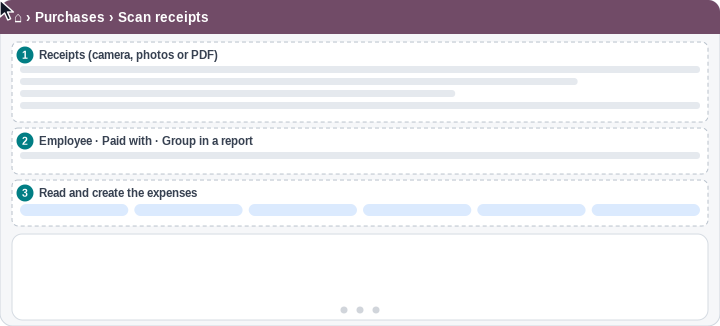
What the AI reads
Business and tax ID (if the supplier already exists, it is filled in automatically), date, total paid, VAT and base, currency and description. It suggests the expense category (among the categories without fixed cost) and the employee if their name appears on the ticket. It uses the same AI and the same keys as invoice scanning (Settings › Contabilidad GestioERP).
Expense reports
Purchases › Expense reports: the expenses of a trip or a month together, with their total and VAT. «Escanear tiques» adds more, «Enviar a aprobar» sends them all, the approver presses «Aprobar» and «Imprimir» produces the PDF.
Upload or drag in the expense list
Purchases › Expenses: the «Subir» button or dragging the tickets onto the list creates one expense per ticket and the AI reads it instantly, as in the Odoo Enterprise Expenses app.
By email
Forward the receipt to the expenses email (Expenses settings › incoming email) from the email in your employee record: the expense is created and the AI reads the attachment on arrival.
If the AI cannot read it
The expense is created with its receipt and a red warning. Correct it by hand or press «Read the receipt with AI» in the record. The «Unread receipts» filter finds them all.
Questions
- How do I scan an expense receipt?
- Purchases › Scan receipts: tap «Receipts», take the photo with your phone (or upload photos and PDFs) and «Read and create the expenses». The AI fills in each expense with its receipt attached.
- What does the AI read from the receipt?
- Merchant and tax ID (and the vendor if it already exists), date, total paid, VAT and base, currency and description. It also suggests the expense category and the employee if their name is on the receipt.
- How do I group several receipts in a report?
- When scanning, keep «Group in a report» ticked and give it a name (e.g. «Trip to Madrid») or pick a draft one. They are in Purchases › Expense reports, with their total and VAT.
- How do I submit expenses for approval?
- In the report, check the expenses and press «Submit for approval»: all draft expenses are sent (each with its receipt). The approver opens the report and presses «Approve».
- Can I drag receipts onto the expense list?
- Yes. In Purchases › Expenses, the «Upload» button or dragging photos and PDFs onto the list creates one expense per receipt and the AI reads it straight away.
- Can I email the receipt?
- Yes: forward the receipt to the expenses email address (enabled in Expenses Settings) from your employee email. The expense is created and the AI reads the attachment on arrival.
- The AI could not read the receipt
- The expense stays created with its receipt and a red warning. Fill it in by hand or press «Read the receipt with AI» on the form. The «Unread receipts» filter shows them all.
- Which AI reads the receipts?
- The same as invoice scanning: Settings › GestioERP Accounting (Gemini, Claude, OpenAI, Groq…). Without a key, expenses are created with their receipt but not filled in.