
Direct printing (Windows Print Bridge)
Print invoices, delivery notes, orders, quotes and labels on the office Windows printers (or network printers by IP) without opening the PDF, with the GestioERP Print Bridge for Windows: computers with a key, twin printers, printer per action and per user, «Print on the PC», job history and an ordered copy on the computer.
- Technical name
gerp_directprint- Author
- GestioERP · SIAM Cloud
What it is and how it works
Direct printing sends Odoo documents (invoices, delivery notes, orders, quotes, labels…) to the office Windows printers without opening the PDF or going through the print dialog. It is done by the GestioERP Print Bridge, which GestioERP for Windows already includes: the computer asks the server every few seconds whether there is anything to print (no ports need to be opened), picks up the PDF and prints it.
- Install GestioERP for Windows on the printer's computer and connect it to this Odoo.
- Check in Computers that it appears as connected.
- Check in Printers which one is the default.
- Print a test.
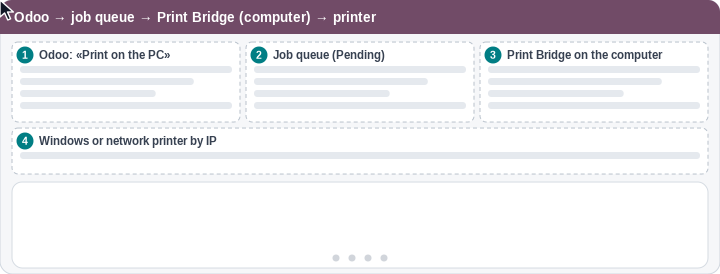
- Someone presses «Print on the PC» on an invoice, order or delivery note (or a module sends its document): Odoo generates the PDF.
- The PDF is queued as a Pending job assigned to the printer that corresponds to the action and the user.
- GestioERP Print Bridge for Windows, on the computer of that printer, picks up the job and reports the result: Printed or With error.
- The printer can be a Windows one (with its exact name) or a network one by IP, which the bridge prints raw without installing it in Windows.
Computers
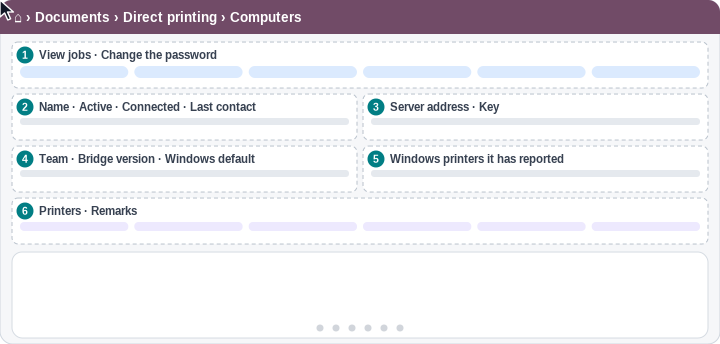
Each office computer with the Print Bridge. It registers itself when GestioERP for Windows is linked, and from here you see it, deactivate it or change its key.
- In GestioERP for Windows press «Add business» and choose Odoo with the server address.
- The computer appears only in this list.
- Give it a clear name, for example «Counter».
- View jobs shows that computer's queue; Change the key generates a new key (the previous bridge can no longer connect until it is linked again).
- Connected means the computer has made contact in the last 2 minutes; Last contact gives the exact time. Deactivating it (Active) removes it from printing.
- The server address and the computer key are the ones the bridge uses; only administrators see the key.
- What the bridge itself reports: the computer name, its version (1.6 or higher is needed to print by IP) and the default Windows printer.
- The list of Windows printers the bridge sees, to copy the exact name when registering a printer.
- Printers tab (the ones on this computer) and free Remarks.
Printers
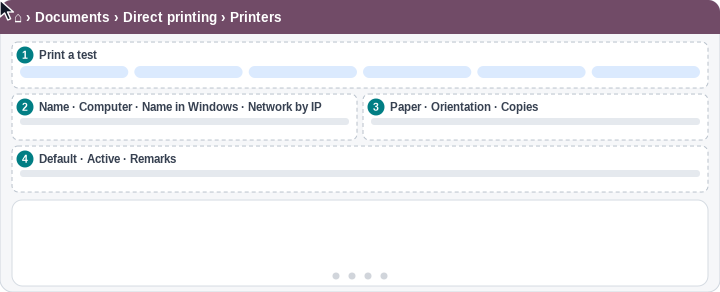
The printers each computer uses: Windows ones, by name, or network ones by IP in the form tcp://IP:9100. Each has paper, orientation and copies, and only one is the default.
- Go to Printers (administrators only) and press New.
- Choose the computer and type the exact name of the printer in Windows, or tcp://IP:9100.
- Set the paper, orientation and copies.
- Save and press Print a test.
- Print a test sends an Odoo test page with the printer and computer name. It does not come out on network printers by IP, which only receive raw commands (for them, a test label).
- The name in Windows must be exact; for a network printer that is not installed type tcp://192.168.1.50:9100 (needs Print Bridge 1.6 or higher). «Network by IP» is checked automatically.
- Paper (A4, A5, Letter, Legal or Ticket 80 mm for receipt printers), orientation (automatic, portrait or landscape) and copies (1 to 99).
- Default: the one used when no other rule chooses. When you check one, the others are unchecked.
Twin printers
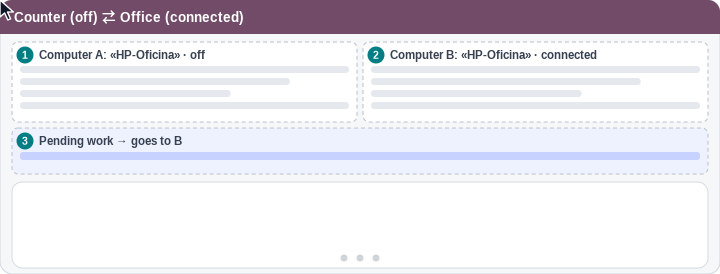
If the same network printer is registered on two computers with the same Windows name, they are twins: if one computer is off, the job passes automatically to the other. This way the printer keeps working even if one machine is turned off.
- Register the printer on each computer with exactly the same Windows name.
- Keep both with the Print Bridge connected.
- The computer the job was assigned to has not made contact in the last 2 minutes.
- Another connected computer has a printer registered with the same Windows name (and, if by IP, bridge version 1.6 or higher).
- When you choose a printer, Odoo uses the connected twin; jobs that were already waiting move to the computer that connects. If none is connected, the job waits in the queue.
Printer per action and per user
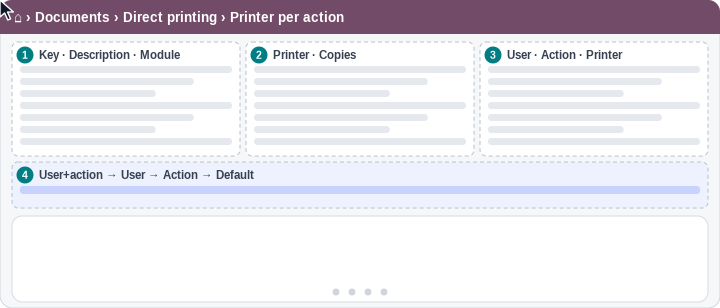
Each document is printed with an action (sales invoice, purchase delivery note…). You can assign a printer to each action and, in addition, a printer to each user, for everything or only for one action.
- In Printer by action, choose the printer for «factura-cliente» and the others.
- In Printer by user add whoever should print at their own workstation.
- Print a document and check which printer it went to in Jobs.
- The actions the module brings: sales and purchase invoice, delivery note, order and quote, «other documents» and the test page. Other modules can register their own.
- For each action you choose the printer and the copies (0 = the printer's own). This way invoices can come out on the laser printer and delivery notes on the dot matrix.
- In Printer by user a printer is assigned to a user, for all actions (Action field empty) or only for one; each user can have only one per action.
- The order: first the user's one for that action, then the user's one for everything, then the action's one and finally the default one.
Print on the PC
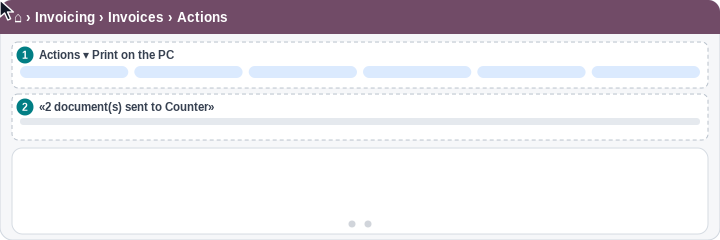
In invoices, orders and delivery notes, the Actions menu has «Print on the PC»: it sends the standard PDF of the document straight to your printer, without a dialog. It can be done with several documents checked at once.
- Open the invoice list and select the ones you want.
- Press Actions › Print on the PC.
- Look at the alert with the printer name.
- Tick the documents (or open one) and press Actions › Print on the PC. It applies to sales and purchase invoices, orders and quotes and to delivery notes, if those modules are installed.
- Odoo tells you which printer they went to. The action is deduced from the document: customer invoice, supplier invoice, quote or order (depending on its status) and customer or supplier delivery note.
Print jobs
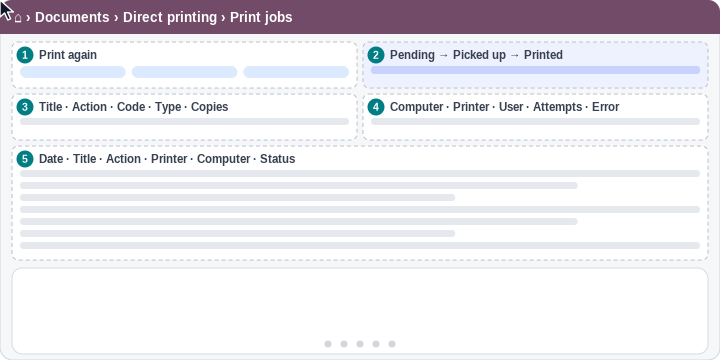
The history and the queue. Each print is a job that goes through Pending, Picked up, Printed or With error.
- Open Print jobs.
- Search the document by title or action.
- If it shows an error, read the message and press Print again.
- Print again puts the job back to Pending, clears the error and the computer picks it up again.
- Pending: waiting for the bridge. Picked up: the bridge has it and is printing it (if it does not answer in 3 minutes it is offered again). Printed: finished. With error: the bridge could not print it. Expired: it had been more than 24 hours without going out.
- The title, the action, the document code (names the copy the computer saves), the type (PDF or raw ZPL/ESC-POS) and the copies.
- Who requested it, to which computer and printer, how many attempts it has had and the bridge's error message.
- The list with all the jobs, the most recent at the top. The history is cleaned after 60 days.
Copy on the computer and bridge protocol
With invoices, delivery notes, orders and quotes, the bridge keeps a copy of the PDF in its printed documents folder, organized: Sales or Purchases, and inside Invoices, Delivery notes, Orders or Quotes, named FAC, ALB, PED or PRE plus the number. Tests and lists are not saved. It is the same protocol as DirectPrint 1.11 of classic GestioERP, so the two bridges and the two servers are interchangeable.
Permissions
In Internal users, the «Direct printing» button on the Documents dashboard (key documentos.impresion) gives the Direct printing submenu; on install, whoever already had Documents receives it. Any internal user can print and see their jobs; adding computers, printers, actions and users can only be done by the administrator (Settings).
Questions
- How do I print an invoice directly without opening the PDF?
- On the invoice (or selected in the list) press Actions › Print on the PC: the PDF goes to the right printer and comes out in seconds, with no dialog. Same for orders, quotes and delivery notes.
- How do I connect a computer to direct printing?
- Install GestioERP for Windows on that computer, press «Add business», choose Odoo and enter this server's address (shown in Documents › Direct printing › Computers, on the computer's form). The computer registers itself; then add its printer under Printers.
- How do I know if a computer is connected?
- In Documents › Direct printing › Computers, the form shows «Connected» if the bridge made contact in the last 2 minutes, and the last contact time. If not, check that the computer is on, GestioERP for Windows is open and linked to this server, and the key has not been changed.
- How do I add a printer?
- Documents › Direct printing › Printers › New: choose the computer and type the exact Windows printer name (shown on the computer's form). For an uninstalled network printer, type tcp://IP:9100 (bridge 1.6 or later). Set paper, orientation and copies and tick «Default» if it is the general one.
- How do I test a printer?
- Open the printer under Printers and press «Print a test»: a page with the printer name, computer and time comes out. Network printers by IP have no test page (they only receive raw commands): use a test label.
- How do I send invoices to one printer and delivery notes to another?
- Documents › Direct printing › Printer per action: on each row (factura-cliente, albaran-cliente, pedido-cliente…) choose the printer and, if you wish, the copies (0 = the printer's). With no printer on the action, the user's or the default one is used.
- How do I assign a printer to a user?
- Documents › Direct printing › Printer per user: add the user and their printer. Leave «Action» empty for everything or type a key (factura-cliente…) for one action. The user's printer takes priority over the action's.
- Which printer is used when several rules apply?
- In order: 1) the user's printer for that action, 2) the user's printer for everything, 3) the action's printer and 4) the default one. If the chosen computer is off and a twin is connected, the twin is used. See it in Print jobs.