
External document storage
Saves the Documents files and the attachments outside the Odoo server: Google Drive, another server by SFTP, S3 storage (Contabo, Backblaze, Wasabi, Amazon…) or a mounted folder. They upload by themselves in the background, open just as always, and the existing ones can be moved over, brought back or moved from one storage to another.
- Technical name
gerp_almacenamiento- Author
- GestioERP · SIAM Cloud
What this module does
Saves the Documents files and the attachments (PDF invoices, emails, quotes…) outside the Odoo server, so as not to use up its disk: in Google Drive, on another server by SFTP, in S3 storage (Contabo, Backblaze, Wasabi, Amazon…) or in a mounted folder (a NAS, for example). They upload by themselves in the background and are opened and downloaded from Odoo just as always. Only administrators configure it.
- Open «Documents › Settings › External storage» (or the «Documents» dropdown at the top).
- Create a storage, fill in the connection and press «Probar conexión».
- Press «Save new ones here»: from that moment on, new files go there.
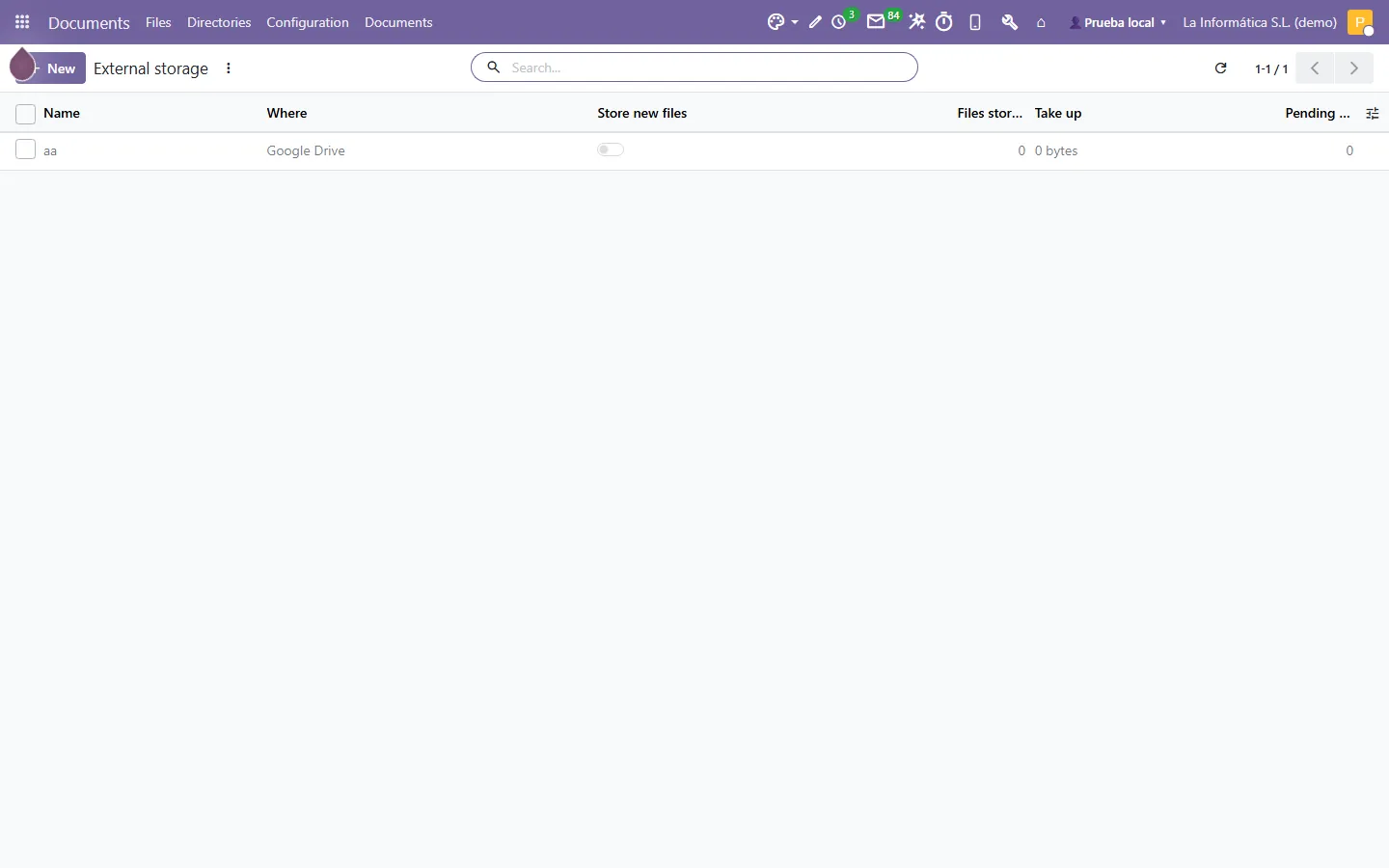
The list of storages
One row for each configured site. The one «in use» is marked and is the one that receives new files; only one can be in use, but the others are still read.
- Top bar with the «New» button. The view also shows archived items.
- Each row: the name, the type, whether it is in use (in green), how many files it holds and how much space they take, those pending upload and the last upload. Those on «Read only» appear greyed out.
The record: where and how it connects
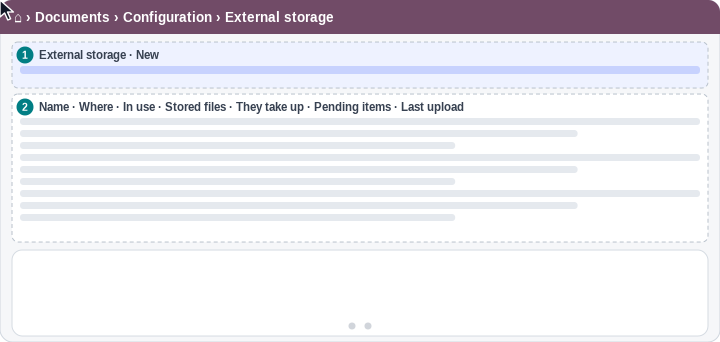
You choose the type and only the data that is needed is shown. The buttons at the top change depending on the situation.
- Buttons: «Test connection»; «Save new ones here» (the storage becomes the one in use); «Move existing ones too»; «Stop using»; «Bring back to the server»; «Move all» and, only in Google Drive with an account, «Connect with Google».
- Name (unique) and «Where»: Google Drive, Other server (SFTP), S3 storage or Server folder (mounted disk).
- Status: how many files it stores and how much space they take, those pending upload and when the last upload was. «Move everything to» is filled in to move everything to another storage.
- The connection details that correspond to the chosen type (see the section for each type).
- «What is stored here»: documents (DMS), attachments, record files, large images, and a minimum size in KB so small files are not uploaded.
The four destination types
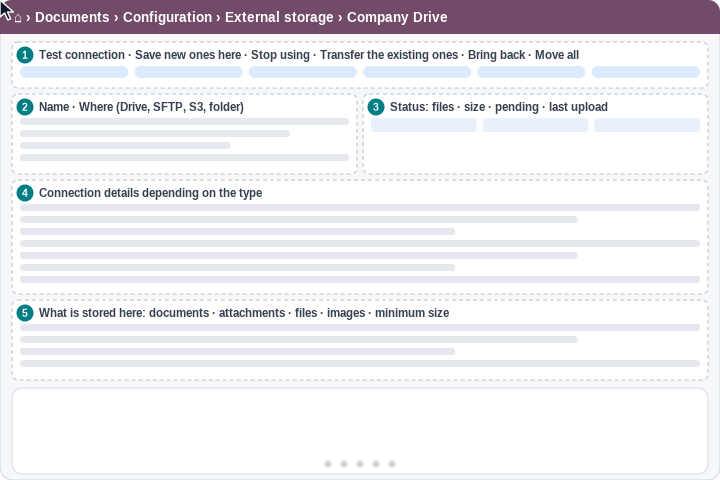
Each type asks for its data.
- Google Drive: with a Google account (Gmail or Workspace), with a Google Cloud OAuth client ID and secret and the «Connect with Google» button (redirect URI: https://<your Odoo>/gerp_almacenamiento/google); or with a service account (JSON file, shared folder of a shared drive or «Act as» with delegation). If you do not set a folder, one is created automatically («GestioERP - documents»); Odoo only sees what it creates itself.
- Other server (SFTP): server, port (22), user, password or private key (the key is better) and folder. When you test the connection, the server's fingerprint is saved; if it later changes, you are warned.
- S3: service address (for example https://eu2.contabostorage.com), region, bucket, access key, secret key and an optional prefix.
- Server folder: the full path of a disk that the server sees as its own (NAS over NFS or SMB, network drive, Drive mounted with rclone).
Transfer, bring back and move the files
By default, only new files are stored externally. With these buttons you decide what happens to the files that already existed and move them to a new location. Everything runs in batches in the background, without stopping your work.
- Open the storage that now holds the files.
- Choose the destination in «Move all to» and press «Move all».
- Wait until «Files stored here» reaches zero; then you can archive or delete it.
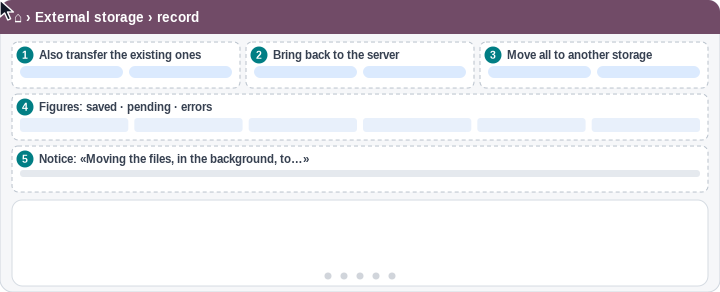
- «Also transfer the existing ones»: uploads to the storage in use all the files that were already on the server.
- «Bring back to the server»: downloads to Odoo everything saved in that storage, so you can stop using it.
- «Move all»: you choose another storage in «Move all to» and the files go directly from one to the other, without taking up server disk; the destination becomes the one in use. It cannot be a «Read only» or archived one.
- In the meantime, pending and saved items show in the figures; files can still be opened.
- A blue notice indicates that a bring-back or a move is in progress and where it is going.
How it works inside and warnings
A new file is saved first on the server and a scheduled task uploads it a few seconds later; the local copy is deleted in Odoo's daily cleanup. The task works in batches, wakes up by itself when a file arrives and switches off if there is nothing to do.
- If the connection fails, the record shows a red box with the last error.
- A storage that still holds files cannot be deleted: first they must be brought back or moved.
- «Read only» does not upload or delete anything at the destination: it is set automatically on test copies of the database, so that a copy does not delete the real business's files.
- The Settings › Documents screen also shows where the files are now stored.
Permissions
In Internal users, section «External document storage»: the main permission gives the two menus and the record; «Move existing files or bring them back» gives the move, bring back and relocate buttons. You also need to be an Odoo administrator: the access data (passwords, keys and secrets) can only be seen and changed by an administrator.
Questions
- How do I store documents outside the server?
- «Documents › Configuration › External storage» › «New»: pick Drive, SFTP, S3 or folder, fill in the connection, «Test connection» and «Store new files here». You must be an administrator.
- How do I connect Google Drive?
- Type «Google Drive». With a Google account: in Google Cloud enable «Google Drive API», create a «Web application» OAuth client ID with the URI https://<your Odoo>/gerp_almacenamiento/google, paste it in the form and press «Connect with Google». With a service account: paste the JSON and share a shared-drive folder with its email. With no folder, «GestioERP - documentos» is created.
- How do I use an SFTP server?
- Type «Other server (SFTP)»: host, port (22), user, password or, better, an OpenSSH private key, and folder. «Test connection» stores the server fingerprint; if it later changes, Odoo warns you.
- How do I use S3 (Contabo, Backblaze, Wasabi)?
- Type «S3 storage»: service address (e.g. https://eu2.contabostorage.com), region, bucket, access key, secret key and an optional prefix. Press «Test connection» then «Store new files here».
- How do I use a network folder or NAS?
- Type «Server folder (mounted disk)»: give the full path (e.g. /mnt/documentos) of a disk the Odoo server sees as its own, such as a NAS over NFS or SMB, a network disk or a Drive mounted with rclone.
- How do I move my existing documents to external storage?
- With the storage already «in use», press «Move the existing ones too» (it asks for confirmation). They upload in batches in the background and you can keep working; the «Pending» figures drop to zero. You need the permission to move files.
- How do I move everything from one storage to another?
- In the current storage, choose the destination in «Move all to» and press «Move all» (confirmation). Files go straight from one to the other without coming down to the server and stay openable; the destination becomes the one in use for new files. A «Read only» or archived destination won't work.
- How do I bring files back to the server?
- «Stop using» only makes new files return to the server. To recover those stored outside too, press «Bring back to the server» (confirmation): they download in batches. When «Files stored here» is zero you can delete it; with files inside, Odoo won't let you.