
Delivery notes
Valued delivery note (with prices, VAT and total) or unvalued, and invoiceable or non-invoiceable delivery notes (internal consumption, warranties…).
- Technical name
gerp_albaranes- Author
- GestioERP · SIAM Cloud
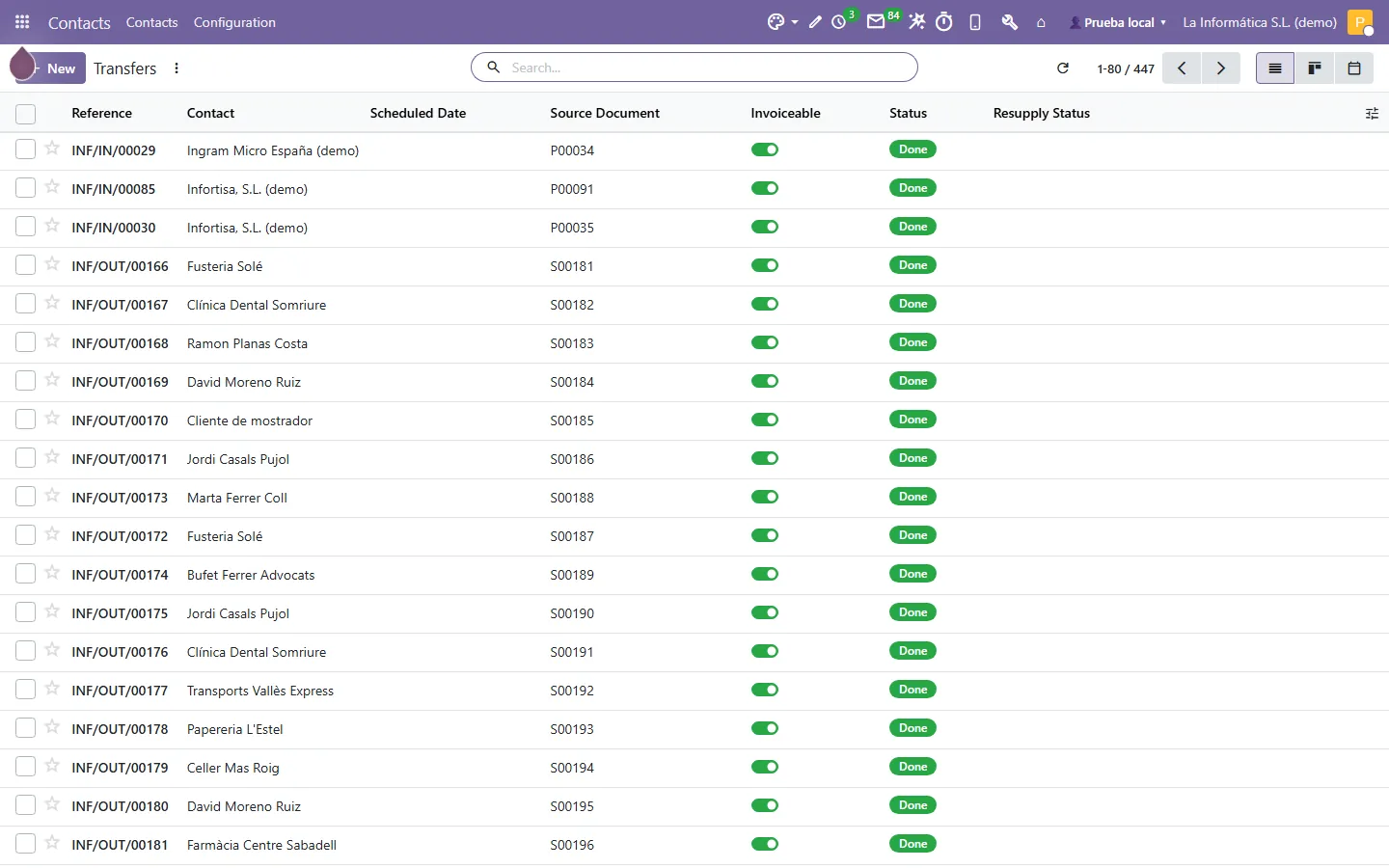
Valued and not billable
On the delivery note: the «Billable» switch and its reason; when printing, «Valued delivery note». In Sales › Delivery notes, tabs Billable and Non-billable.
The non-billable reason
When you switch off «Billable», «Reason» appears: internal use, warranty, loan…
The billable tabs
Sales › Delivery notes: «Billable» and «Non-billable» filters.
The new delivery note
Home › Sales › «New delivery note»: outgoing delivery note from the company's warehouse.
The price on the valued delivery note
The price comes from the sales order line (with its discount); if there is no order, from the product's sales price.
Validate a delivery note
On the delivery note enter what was delivered and «Validate»; the stock is deducted.
Invoice delivery notes
Odoo invoices from the order: «Create invoice» invoices what has been delivered. Non-billable items are kept apart but do not prevent the order from being invoiced.
Print the delivery note without prices
Print › the Odoo delivery note (without prices) instead of «Valued delivery note».
The delivery note preview
In Sales › Delivery notes, the eye icon on the row opens the valued delivery note in a window.
Questions
- How do I print a priced delivery note?
- When printing choose «Priced delivery note» or the normal one. To not bill it, switch off «Billable».
- How do I say why it isn't billed?
- «Reason» appears.
- How do I see non-billable deliveries?
- «Billable» and «Non-billable» filters.
- How do I make a delivery without an order?
- «New delivery».
- How do I know where the price comes from?
- From the order line.
- How do I deliver the goods?
- «Validate».
- How do I invoice the deliveries?
- From the order.
- How do I print the delivery without prices?
- The Odoo delivery slip.