
Labels by direct printing
The labels go out through the GestioERP Print Bridge for Windows to the roll printer (Windows or network by IP) of the office computer, without a dialog: new «Direct printing» connection in the label printers. It is installed only with Labels and Direct printing.
- Technical name
gerp_directprint_etiquetas- Author
- GestioERP · SIAM Cloud
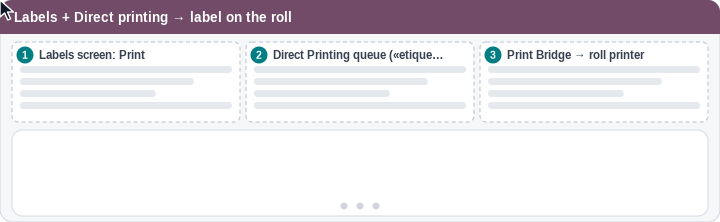
What it is
Joins the Labels and Direct printing modules: labels go out through the Print Bridge of GestioERP for Windows to the Windows printer (or network printer by IP) of the office computer, with no dialog or downloads. It is installed only when both modules are installed and adds a new connection, «Direct printing», to the label printers.
- You choose products, format and a label printer with «Direct printing» connection and press Print.
- The labels go to the Direct printing queue as a job of the «labels» action, assigned to the chosen Windows printer.
- The Print Bridge on that printer's computer picks up the job and prints it: raw (ZPL or TSPL) if the label printer speaks one of the two, or as a PDF the size of the label.
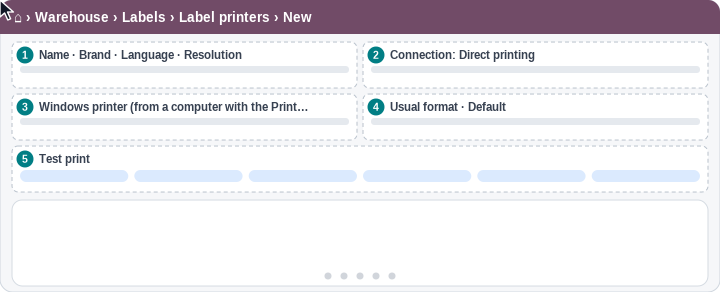
Configure the label printer
In a label printer's record, the connection gets a fourth option: «Direct printing (Windows Print Bridge)». When you choose it, the «Windows printer» field appears, which is required.
- First register the computer and its printer in Documents › Impresión directa.
- In Label printers press New.
- Choose language and resolution, «Direct printing» connection and the Windows printer.
- Press Test print.
- Language and resolution of the roll printer (ZPL for Zebra and Godex, TSPL for TSC, or PDF for any other) and its resolution in dpi.
- With the «Impresión directa» connection the own IP and port disappear: the Print Bridge handles the communication.
- The Windows printer is chosen from those registered in Documents › Direct printing › Printers (it can be one installed in Windows or a network one by IP tcp://IP:9100).
- The usual format of the printer and whether it is the default for labels.
- Test print sends a test label through the bridge.
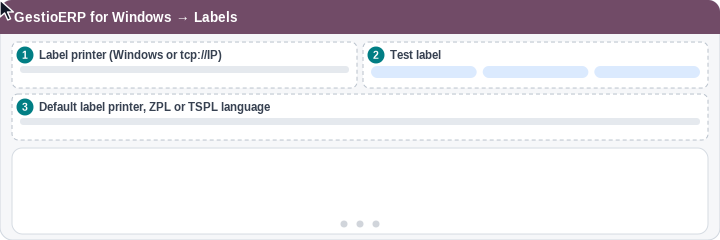
Automatic sign-up from GestioERP for Windows
When setting up the computer from GestioERP for Windows, the application can register the label printer at the same time. The module creates the Windows printer, makes it the default label printer with the language that corresponds to it (TSPL if the name contains TSC or TSPL, ZPL otherwise) and, if requested, sends a test label.
- The printer name in Windows, or a tcp://IP:9100 address if it is a network printer.
- Optionally a test label is sent with the first available format and you are told whether the computer is connected.
- Result: one label printer with «Direct printing» connection and set as default; the others stop being default.
How to know what has happened
Each print creates two trails: the label job (Warehouse › Labels › Label jobs), which stays at «Printed» as soon as it has been sent to the queue, and the direct print job (Documents › Direct printing › Print jobs), which says whether the bridge has picked it up, printed it or given an error. If the computer is off, the job waits in the queue for up to 24 hours.
Questions
- How do I print labels directly on the computer's roll printer?
- In Warehouse › Labels › Label printers, create the printer with the «Direct printing» connection and choose the Windows printer. Then on the labels screen select it as the printer and press Print: labels come out through the Print Bridge with no dialog.
- What do I need for it to work?
- Have Labels and Direct printing installed: this module installs itself when both are present. Also a computer with GestioERP for Windows (the Print Bridge) connected to this Odoo and the printer registered in Documents › Direct printing › Printers.
- ZPL, TSPL or PDF through direct printing?
- Set the label printer's language to your printer's: ZPL (Zebra, Godex) or TSPL (TSC), and labels travel raw through the bridge. If you choose HTML/PDF they travel as a PDF page at label size and the Windows driver prints them (any brand).
- Can I use a network label printer with an IP through the bridge?
- Yes, with Print Bridge 1.6 or later: in Documents › Direct printing › Printers register the printer with the name tcp://IP:9100 and choose it as the label printer's «Windows printer». The bridge sends labels raw over the network without installing it in Windows.
- How do I register the label printer from GestioERP for Windows?
- When preparing the computer in GestioERP for Windows, specify the label printer: Odoo creates it as a label printer with «Direct printing», makes it the default and sets ZPL (or TSPL if the name contains TSC). If you ask for a test, a sample label is printed.
- How do I test the label printer by direct printing?
- Open the printer in Label printers and press «Test print»: it sends a test label (reference PRUEBA, sample code) through the bridge. If it does not come out, check in Documents › Direct printing › Print jobs whether it is pending (computer off) or in error.
- Labels do not come out, what do I check?
- Look in Documents › Direct printing › Print jobs for the job with action «etiquetas»: Pending means the computer is not connected (switch it on and open GestioERP for Windows); Error shows the reason and is repeated with «Print again». Also check the Windows printer name is exact.
- Why does the label job say «Printed» if nothing came out?
- The label job becomes «Printed» when it has been sent to the bridge queue, not when it comes out on the roll. What confirms the computer printed it is the Direct printing job (Printed, Pending or Error), in Documents › Direct printing › Print jobs.