
Quality
Control points (pass or fail, measurement with tolerance, photo or instructions) by warehouse operation, product or category; the checks are created automatically when the delivery note is confirmed and block validation while they are pending; if one fails, a quality alert is opened with cause, team and corrective and preventive actions.
- Technical name
gerp_calidad- Author
- GestioERP · SIAM Cloud
How quality works
Warehouse quality is controlled in three steps: you define what has to be checked (control point), Odoo creates the checks by itself when a delivery note is confirmed, and if something fails an alert is opened to correct it.
- Configuration › Control points: you define what is checked, in which operations and on which products.
- When a delivery note is confirmed (receipt of goods, delivery or internal transfer), a check is created for each point and product concerned.
- An employee with Quality permission opens each check and presses «Pass» or «Fail».
- While there are pending checks for a «mandatory» point, the delivery note cannot be validated.
- If a check fails, a quality alert is opened automatically with its cause, owner and corrective and preventive actions.
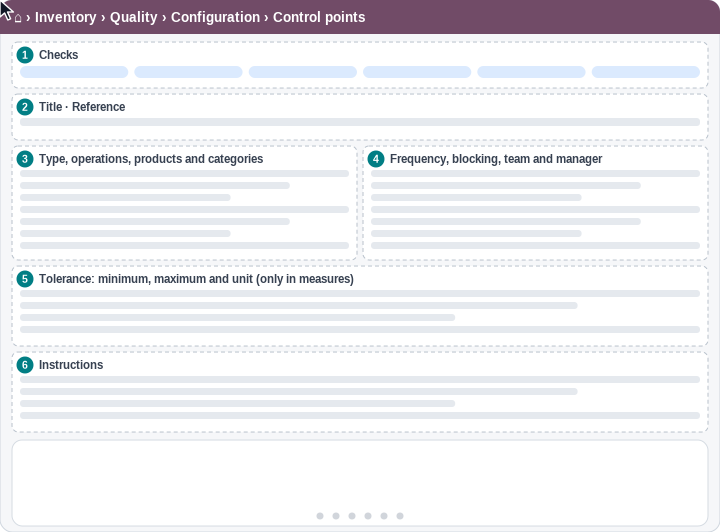
Control points
The rule: what is checked, when and on what. They are defined in Quality › Settings › Control points (only for warehouse managers).
- The «Controles» button opens all the checks that this point has generated.
- The title is what whoever does the check will see (for example «Check the packaging»); the reference is set automatically.
- Check type: «Pass / fail», «Measure», «Take a photo» or «Instructions». The operations are those of the warehouse where it is applied (receipts of goods, deliveries…) and you must choose at least one. With no products or categories, the point applies to any product.
- Frequency: «All», «Random» (a percentage of the delivery notes) or «Every so often» (every so many days). «Blocks validation» prevents validating the delivery note while the check is pending. The team and the manager are also chosen.
- Only the support teams with the «Website form» box checked (and of the website's company or without a company). It is set in Support › Settings › Teams.
- Help text for whoever does the check, for example how to measure or what to look at.
Quality checks
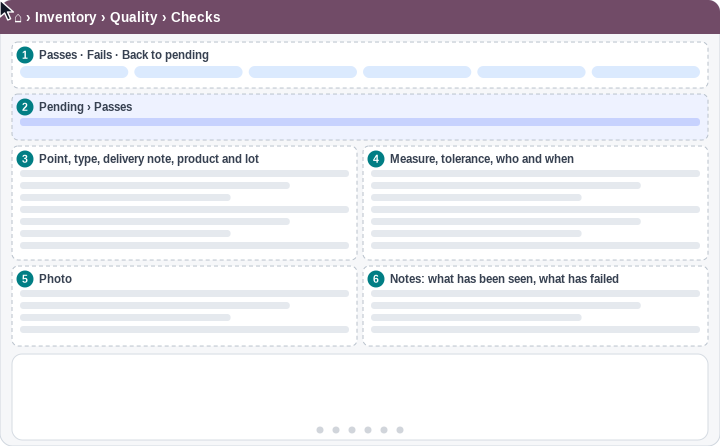
The list of checks to do and already done. They appear on their own when the delivery note is confirmed.
- Quality › Checks: filter by «Pending» or «My checks».
- Open the check, run the test (measure, take the photo, read the instructions) and press «Pass» or «Fail».
- It can also be reached from the delivery note itself, with the «Quality» button on its record.
- «Passes» marks the check as good; «Fails» marks it as bad and opens the alert. Once done, «Back to pending» leaves it unresolved again.
- The status: Pending, Pass or Fail. It records who did it and when.
- Which point, delivery note, product and lot it belongs to.
- In measurement checks, type the measurement: if it is outside the minimum and maximum, the check fails even if you press «Pass».
- In photo-type checks you must upload an image before you can mark the check as passed.
- A free field to leave a record; if the check fails, that text goes to the alert description.
Checks on the delivery note
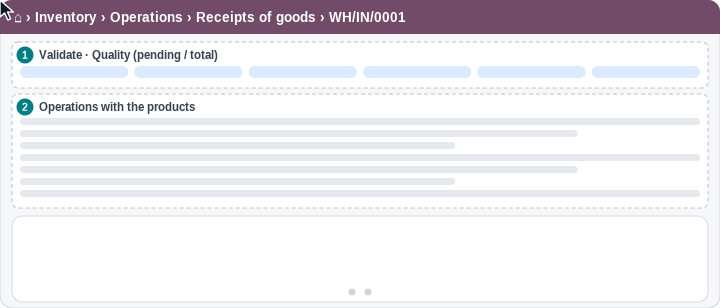
The Inventory delivery note has a «Calidad» button that shows how many checks it has and how many are pending.
- If there are pending checks for mandatory points, «Validate» does not work and warns how many are missing. They are done from the «Quality» button».
- The checks are created when the delivery note is confirmed, one for each point and product. If the point is «random» or «every so often», a delivery note may not generate any.
Quality alerts
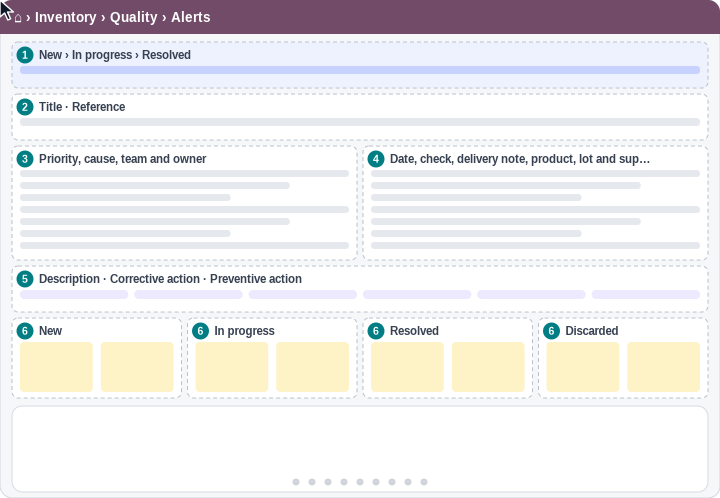
When something fails, an alert is opened to find out what happened, who is handling it and what is done to fix it and prevent it from happening again. They can also be created by hand.
- Statuses: New, In progress, Resolved and Discarded. They are changed by pressing the status; when resolving or discarding, the date is noted.
- What happened, in one line; the reference is filled in automatically.
- Priority (Normal, High, Very high, Urgent), cause from the catalog, quality team and owner.
- The origin: the control that failed, the delivery note, the product, the lot or serial number and the supplier or customer involved.
- The description of the problem, what is done to fix it and what is done to prevent it from happening again.
- The dashboard view groups the alerts by status: drag a card to move it to another column.
Equipment and causes
Two simple catalogs that organize the alerts: who is in charge and why it happened.
- Configuration › Teams: the quality groups of people, with their members.
- Configuration › Causes: the usual reasons for an alert (for example «damaged packaging», «measurement out of tolerance»). They can be created on the fly from the alert itself.
- In the alerts you can group by cause, equipment, status or product, and see a pivot table to know which are the most frequent problems.
Permissions
Who can do what, and how the menu looks.
- The «Quality» menu hangs under Inventory and is seen by users with access to the warehouse.
- «Configuración» (points, teams and causes) is only for warehouse managers; the rest can read the points but not change them.
- Marking a check as good or bad, or putting it back to pending, requires the «Calidad» permission in Internal users.
- In Internal users the «Control points» and «Quality alerts» buttons also appear so you can grant or remove them.
Questions
- How does quality control work?
- You define in Quality › Configuration › Control points what must be checked. When a delivery slip is confirmed, Odoo creates a check for each point and product; you press «Pass» or «Fail», and a failure opens an alert. Mandatory points prevent validating the slip while pending.
- How do I create a control point?
- Quality › Configuration › Control points › New: set the title, the type of check, the operations where it applies (receipts, deliveries, internal) and, if you like, specific products or categories; without them it applies to everything. Choose the frequency, whether it blocks validation, the team and the owner.
- What types of check are there?
- Four: «Pass / fail» (you decide), «Measure» (you enter the value and it must be between the point's minimum and maximum), «Take a photo» (you must upload an image to approve) and «Instructions» (a text you read and confirm).
- How do I perform a check?
- Quality › Checks, «Pending» filter: open the check, do the inspection and press «Pass» or «Fail». For a measurement, enter it first; for a photo, upload the image. If you make a mistake, «Back to pending». You need the «Quality» permission in Internal users.
- Why can't I validate the delivery slip?
- Because the slip has pending quality checks from points that block validation. Open the «Quality» button on the slip and do the checks. If you do not want a point to block, untick «Blocks validation» in its settings.
- When are the checks created?
- When the slip is confirmed: one check is created for each point that includes its operation type and each product it applies to. They are not duplicated. If the point is «Random» or «Periodic», sometimes it is not due and that slip will have no check.
- How do I do random checks?
- In the control point, choose the frequency: «Random» with the percentage of slips to check (10% by default), or «Periodic» with the days between checks (7 by default). With «All» it is always checked.
- What happens if a check fails?
- A quality alert is opened with the slip, product and lot, the point's owner and the check notes. For measurement checks, if the value is outside the minimum and maximum the check fails even if you press «Pass». Only one alert is created per check.