
GestioERP for Windows with GERP ODOO
The GestioERP desktop application for Windows 10 or 11: it opens your GERP ODOO in its own window and the POS in full screen with the «TPV» card, prints without dialogs through the print bridge it carries inside and, if the internet goes down, the till PC acts as the local server for the POS. There are two variants: the standard one and the POS one.
- Technical name
gerp_windows- Author
- GestioERP · SIAM Cloud
▶ Video course
Ximena and Marc show you with voice-over and subtitles, in three or four minutes, in Spanish.
What it is and its two variants
GestioERP for Windows is a desktop application that opens your GERP ODOO in its own window, without a browser, and carries the print bridge (Print Bridge) inside: whatever you send to print from GERP ODOO comes out on that computer's printers without opening the PDF. There are two variants with the same program inside: «GestioERP for Windows», with everything (GERP ODOO, the POS, the settings and the backups), and «GestioERP POS for Windows», meant for the till or bar computer, which starts straight in the POS in full screen.
- For the office, install «GestioERP for Windows»: GERP ODOO, the POS, the settings and the backups.
- For the till or bar computer, «GestioERP POS for Windows»: it starts straight in the POS.
- Both carry the same print bridge: one per computer is enough.
Downloading and installing it
It is downloaded from gerpodoo.com, under Downloads (the installers are at gestioerp.com/downloads/windows/ and gestioerp.com/downloads/windows-tpv/). It runs on 64-bit Windows 10 or 11 with at least 4 GB of memory, installs without administrator rights and updates itself: it checks for a new version on start-up and every 6 hours, downloads it and installs it when the application is closed.
- Open gerpodoo.com › Downloads and press «GestioERP for Windows» (or «GestioERP POS for Windows» on the till computer).
- Open the downloaded installer (gestioerp-windows-v….exe) and follow the steps: it does not ask for administrator rights.
- When it finishes, the application opens with the wizard; afterwards you have it in the Start menu.
- To stay up to date you do not have to do anything; Settings › System has «Check for updates».
Adding your GERP ODOO and signing in
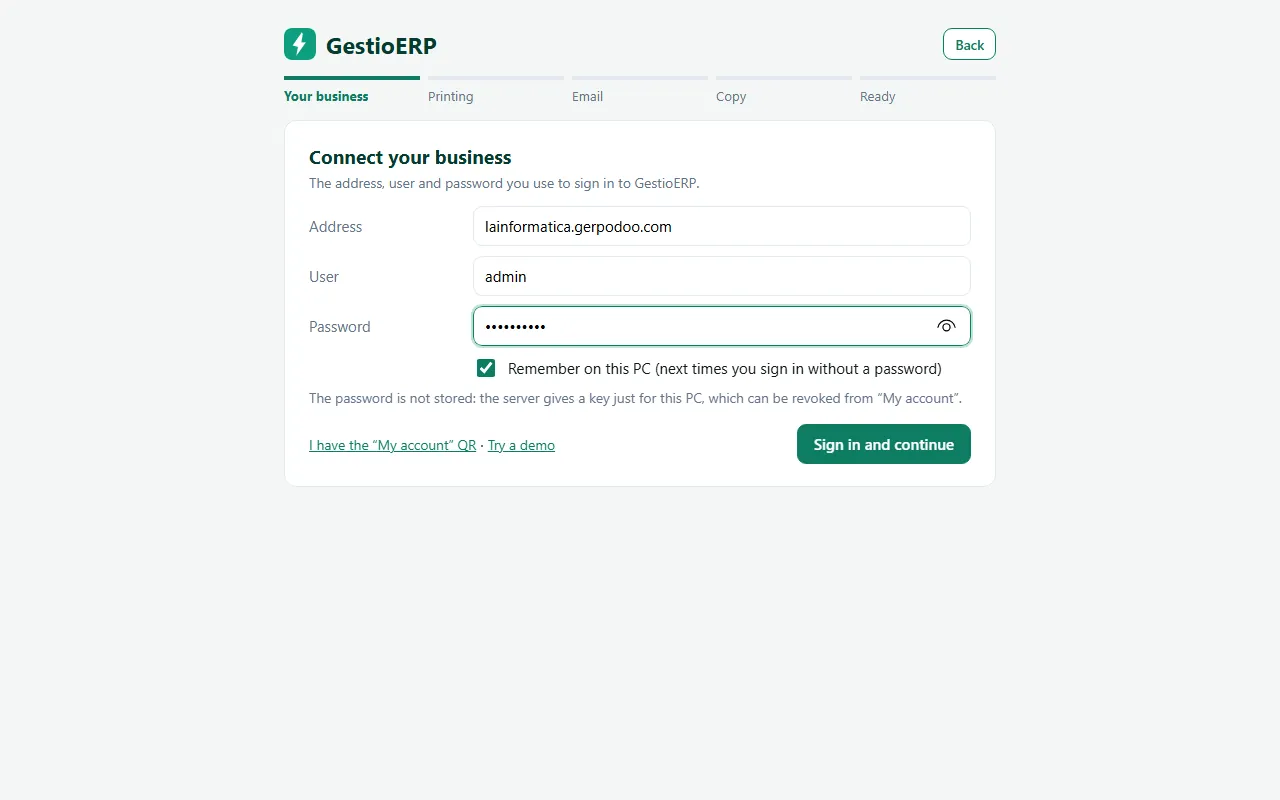
The first time, the «Connect your business» wizard opens. Type your GERP ODOO address (for example yourcompany.gerpodoo.com), your Odoo user and password: the application sees it is a GERP ODOO, signs in and keeps the session on this PC, so next time you are already in. If your user has two-step verification, it asks for the code. To add another business later, press «+ Add business» on the home screen».
- Open GestioERP for Windows: the first time the wizard shows up (later, «+ Add business» on the home screen).
- Type your GERP ODOO address, your user and your password and press «Sign in and continue».
- If it asks for the verification code, type it.
- Continue with Printing, Email and Backup: each step can be skipped and done later in Settings.
- In «Done» choose what to open: GERP ODOO, the POS or the home screen.
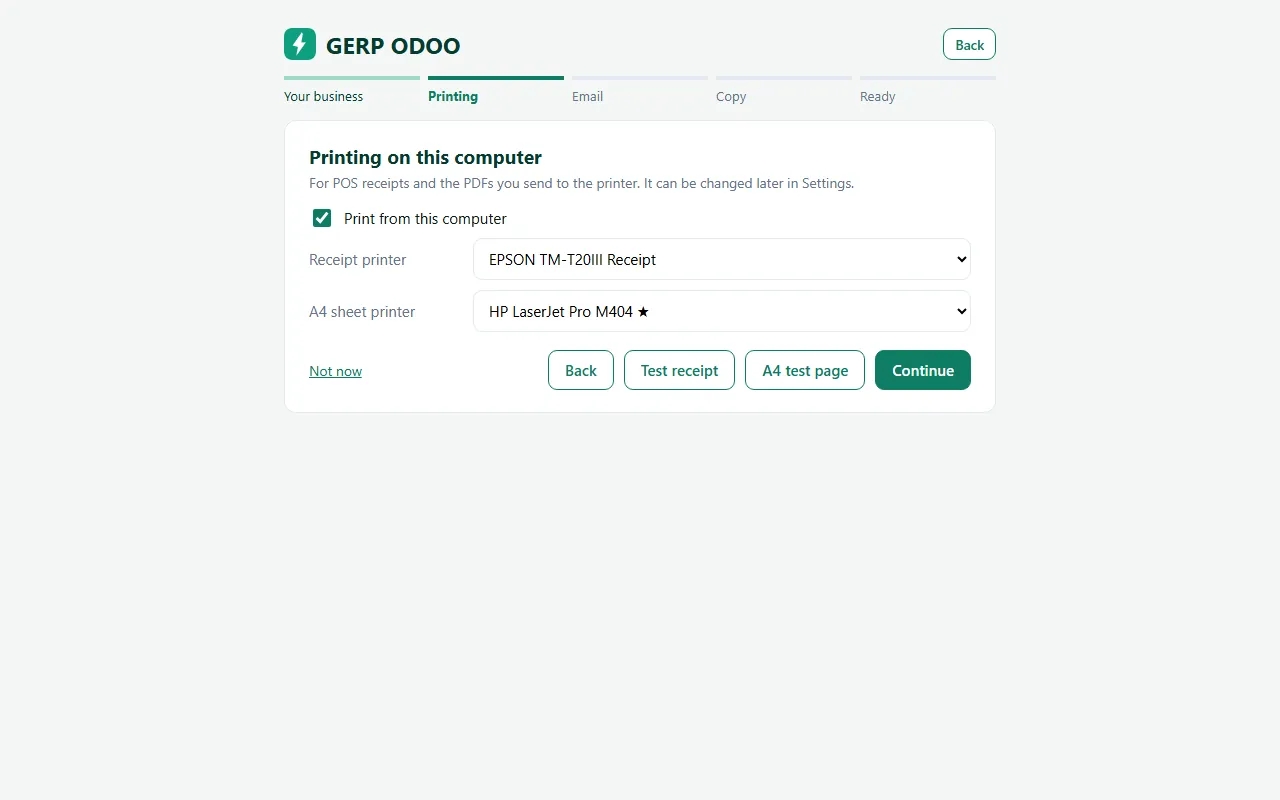
The wizard: printing, email and backup
After signing in, the wizard prepares the computer. In Printing you choose this PC's Windows printers: the A4 one for invoices and delivery notes and, if the business has Labels, the label printer (also a network one by IP). If you signed in as an administrator, when you continue the PC is registered in Documents › Direct printing › Computers, with its A4 printer. In Email the business email is set up, and it also becomes Odoo's outgoing server; in Backup, the backup on this PC. The GERP ODOO POS receipt printer is not chosen here: it is added in Direct printing (see «The POS receipt printer»).
- In Printing, choose the «A4 sheet printer» (and the label printer, if it shows) and press «A4 test page» to see that it prints.
- Press «Continue»: if you are an administrator, the PC and its printer are registered in GERP ODOO; if not, an administrator can do it later from Settings.
- In Email, choose who runs your email and type the address and the password, or «Skip this step».
- In Backup, decide whether a backup is saved on this PC every night.
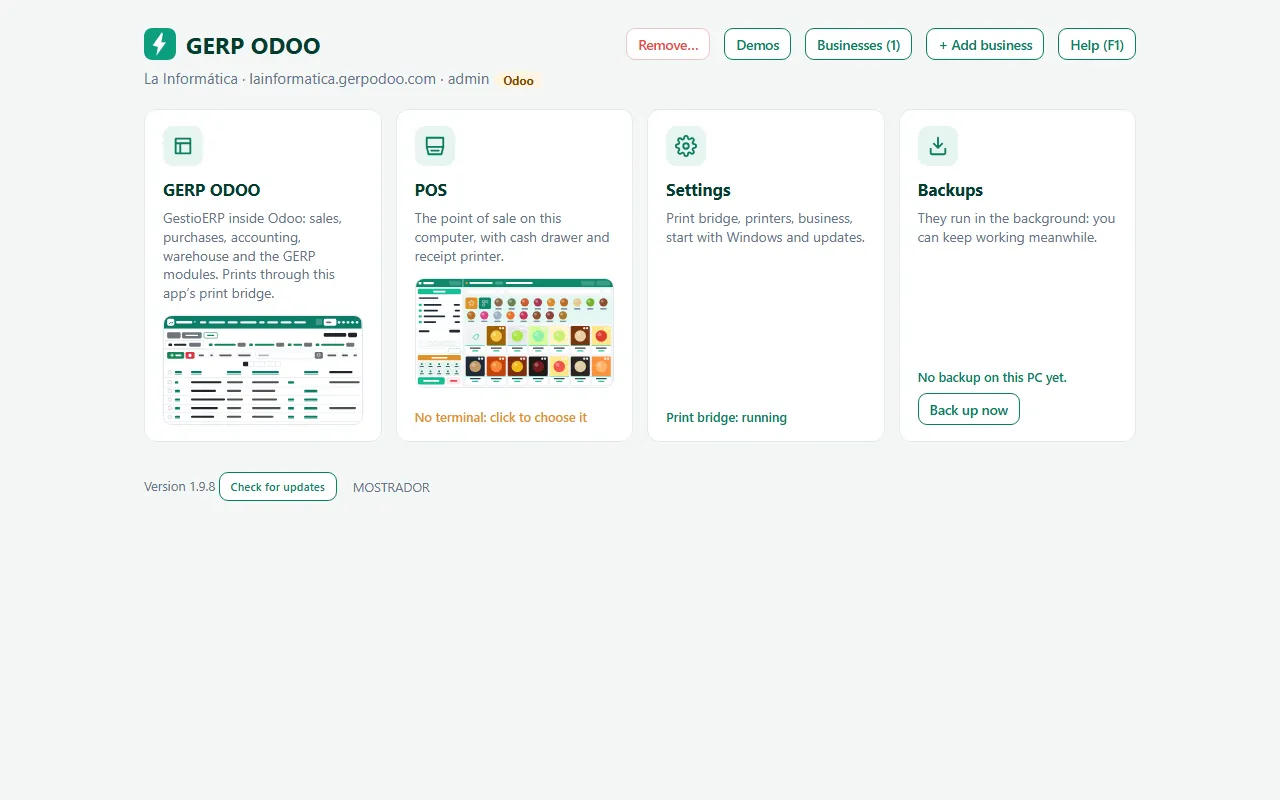
The home screen and the «TPV» card in full screen
The home screen has one card per thing: GERP ODOO, POS (if your GERP ODOO has the POS installed), Settings and Backups. The POS card opens the GERP ODOO POS in full screen, without the application bar: it asks for the user and the till inside its own screen, brings the tables, sending to the kitchen and pre-orders, and it is kept on the PC so it opens even if the internet goes down. Receipts come out on the printers of the computers with the bridge. GestioERP POS for Windows starts straight here.
- On the home screen, press the «TPV» card».
- The first time, sign in with your GERP ODOO user and choose the till.
- To go back home, use the back button at the top, or F11 to leave full screen.
- If you do not want the card, untick «Show the POS on the home screen» in Settings».
Linking the computer as a print bridge
For GERP ODOO to print on this PC's printers, the computer has to be registered in Documents › Direct printing › Computers. Each computer has its key: with it the bridge asks GERP ODOO every few seconds whether there is anything to print, without opening ports. The easiest way is to let the application do it: as an administrator, the wizard or Settings › Print bridge › «Register this PC» registers it with the computer name and its A4 printer. It can also be done by hand: create the computer in GERP ODOO, copy its «Computer key» and paste it into the application.
- In GestioERP for Windows, open Settings › Print bridge and leave «Print from this computer» ticked».
- Choose the «A4 printer for PDFs (Windows)» and press «Register this PC» (you need to be a GERP ODOO administrator).
- In GERP ODOO, open Documents › Direct printing › Computers: the PC shows with the computer name, «Connected» and the time of the last contact.
- Give it a clear name («Counter», «Office») and look at «Windows printers» for the exact names it has reported.
- By hand: in Computers press New and save, copy the «Computer key» and paste it into Settings › Print bridge › «Computer key (DirectPrint)».
- If «Change the key» is pressed, the bridge stops getting in until the new one is pasted or it is registered again.
Without internet: the till PC as the local server
With the GERP ODOO POS, the till PC with GestioERP for Windows acts as the local server. While there is a connection, opening the POS on that PC registers it on its till and downloads what it needs: the items, the rooms and tables, the open bills and the zones with their order printer (refreshed every 10 minutes). If the internet goes down, this PC's POS and the tablets with the GERP ODOO POS app talk to it over the local network (port 8790): tables, sending to the kitchen (the order ticket comes out on each zone's printer) and charging carry on. When the connection is back, everything is uploaded to GERP ODOO in order and without repeating anything. Without a connection the payment receipt is not printed and the drawer cannot be opened from the POS: it is opened with the key.
- Open the POS once with a connection on the till PC: it is registered as the local server.
- The first time Windows asks whether to allow network use: allow it on private networks.
- Leave the till PC on with the application open (or in the tray, next to the clock).
- If the internet goes down, the POS shows «Offline · local server» and work goes on.
- When the internet returns there is nothing to do: what was done is uploaded on its own.
Questions
- Where do I download GestioERP for Windows?
- At gerpodoo.com › Downloads: «GestioERP for Windows» for the office and «GestioERP POS for Windows» for the till computer. 64-bit Windows 10 or 11, no administrator rights, and it updates itself.
- What is the difference between GestioERP for Windows and GestioERP POS for Windows?
- It is the same program. GestioERP for Windows has everything (GERP ODOO, POS, settings and backups) and GestioERP POS for Windows starts straight in the POS in full screen: it is the one for the till or bar computer. Both carry the print bridge.
- How do I add my GERP ODOO to the Windows application?
- In the wizard (or with «+ Add business» on the home screen) type your GERP ODOO address, your Odoo user and password and press «Sign in and continue». The application recognises it is a GERP ODOO, signs in and keeps the session on the PC.
- How do I open the POS in full screen on Windows?
- On the home screen, the «TPV» card opens it in full screen (it shows if your GERP ODOO has the POS installed and «Show the POS on the home screen» is ticked in Settings). F11 leaves full screen and the back button takes you home.
- How do I link the computer to print from GERP ODOO?
- As an administrator, in Settings › Print bridge choose the A4 printer and press «Register this PC»: the computer shows in Documents › Direct printing › Computers. By hand, create the computer there, copy its «Computer key» and paste it into «Computer key (DirectPrint)».
- What happens to the POS if the internet goes down?
- The till PC with GestioERP for Windows acts as the local server: tablets carry on with tables, the kitchen (order tickets come out on each zone's printer) and charging, and when the connection returns everything is uploaded on its own. Offline, the payment receipt is not printed and the drawer cannot be opened from the POS.
- Do I need administrator rights to install GestioERP for Windows?
- No. It installs for your Windows user without administrator rights. It needs 64-bit Windows 10 or 11 and at least 4 GB of memory; the installer checks it and does not install otherwise.
- How is GestioERP for Windows updated?
- On its own: it checks for a new version on start-up and every 6 hours, downloads it and installs it when the application is closed. In Settings › System, «Check for updates» checks right away.