
Component photos in Manufacturing
Small photo of each component in the bills of materials and in the manufacturing orders, that of the product or of its category. It installs only with Product photos and Manufacturing.
- Technical name
gerp_imagenes_mrp- Author
- GestioERP · SIAM Cloud
What it is
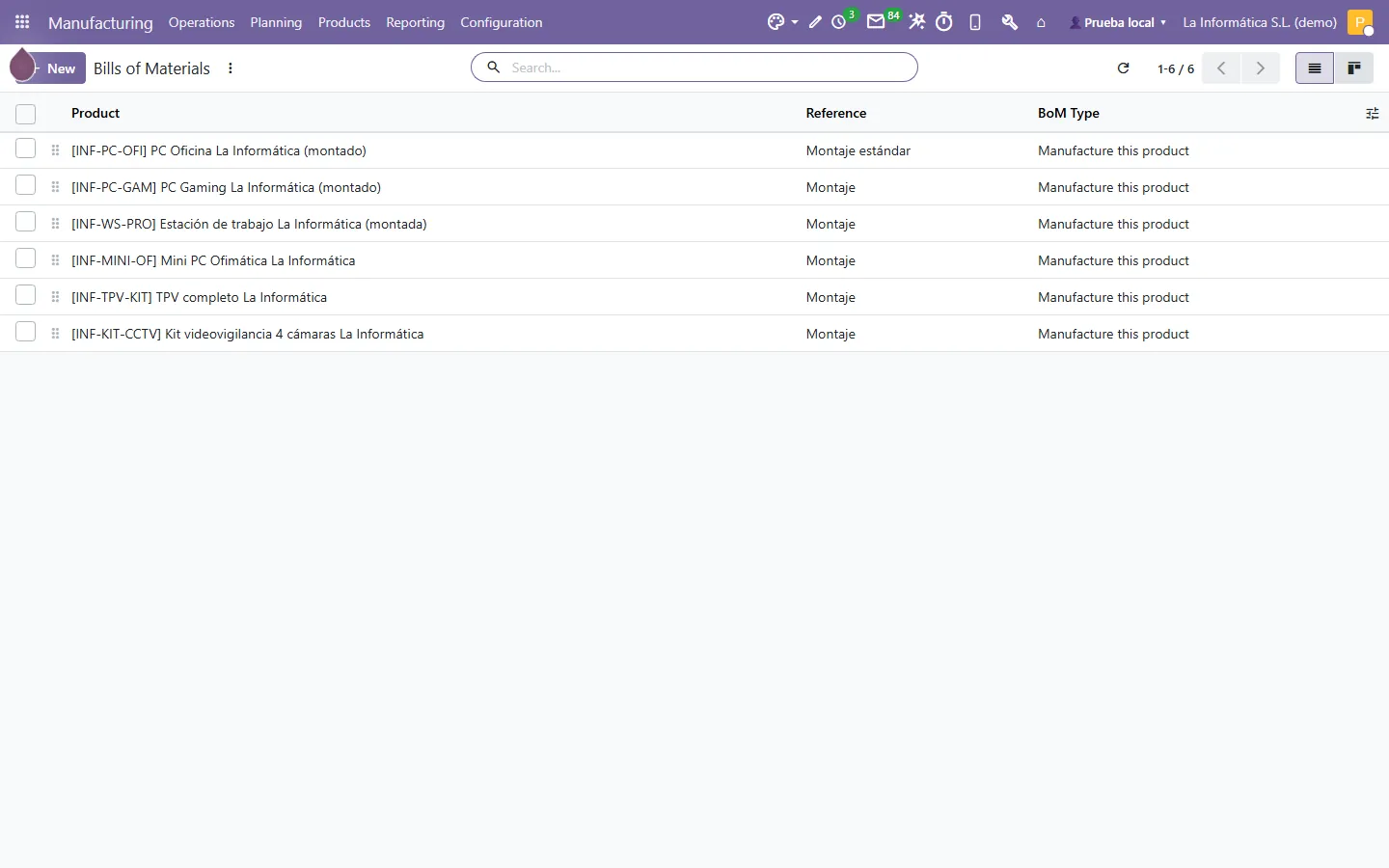
Adds a small photo of each component to the bills of materials and manufacturing orders, to recognize at a glance which part or material each line is. It works with the product photos from the Product photos module and is installed automatically when that module and Manufacturing are present.
- The bill of materials record does not change: it still has the product, the quantity and the reference.
- A new column with the component's photo, 32 x 32 pixels, before the product name.
- The usual components, with their quantity and unit. The photo is read-only: it is not changed here.
In the bills of materials
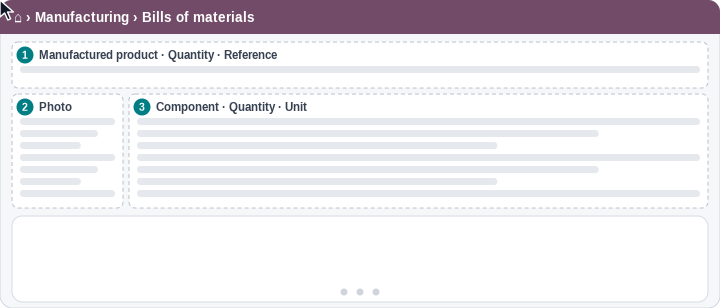
In the Components tab of each bill of materials, each line shows the photo of its product on the left.
- Open Manufacturing › Bills of materials and open one.
- Look at the Components tab: the photo is to the left of each line.
- The photo only appears in the Components tab; the other tabs do not change.
- Each row carries the photo of its product; if the line has no product yet, none is shown.
In the manufacturing orders
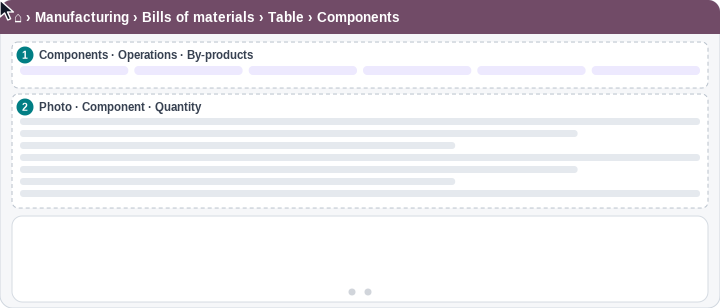
In the components of the manufacturing order, the component photo appears before the product name, also on every line that is consumed.
- Open a manufacturing order.
- In the Components tab look at the photo of each line.
- The order header does not change.
- Each component shows its photo: useful in the workshop to pick the right part without reading the name.
Where the photo comes from
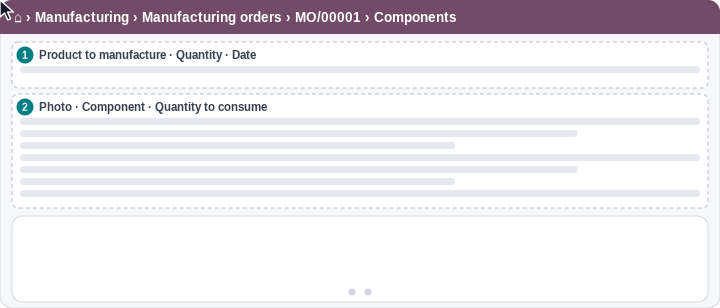
It is the product photo (small size). If the product has none, its category's photo is used, which can also have a photo thanks to the Product photos module. To change a photo, edit it in the product or category record: it updates in the bills of materials and in the orders.
Permissions and requirements
It has no permissions of its own: whoever sees the bills of materials and the manufacturing orders sees the photos (Manufacturing button in Internal users). Product photos and Manufacturing must be installed; the module installs itself only when both are present.
Questions
- Where do I see component photos in manufacturing?
- In the Components tab of a bill of materials and a manufacturing order: each line has a small photo of its product, just before the product name.
- How do I change a component's photo?
- The line's photo is read-only: change it on the product (or its family) form. After saving, the new one appears in all bills of materials and manufacturing orders.
- Why does a component show no photo?
- Because neither its product nor its family has a photo, or the line has no product yet. Add a photo to the product (or family) and it will show in the lists and orders.
- Which photo is shown if the product has none?
- The product's photo; if it has none, its family's (product category), which can have one thanks to the Product photos module. If neither exists, the cell stays empty.
- Which modules do I need to see photos in manufacturing?
- Product photos and Manufacturing. This module installs itself when both are present and there is nothing to configure.
- Does the photo appear elsewhere in manufacturing?
- Only in the components of bills of materials and manufacturing orders. It is not added to operations, by-products or this module's printed reports.
- Who can see component photos?
- It has no permission of its own: anyone who can open bills of materials and manufacturing orders sees them. If you cannot see Manufacturing, enable it in Internal users (Manufacturing button).
- How big is the component photo?
- It is a 32 x 32 pixel thumbnail with a border and white background, fitted without distorting the image. To see it large, open the product form.