
Brands with image
The logo of each brand in the brands list, like the photo of products and families. It is installed automatically when Brands (product_brand) and GestioERP Product Images are present.
- Technical name
gerp_marcas- Author
- GestioERP · SIAM Cloud
The brand logo in the list
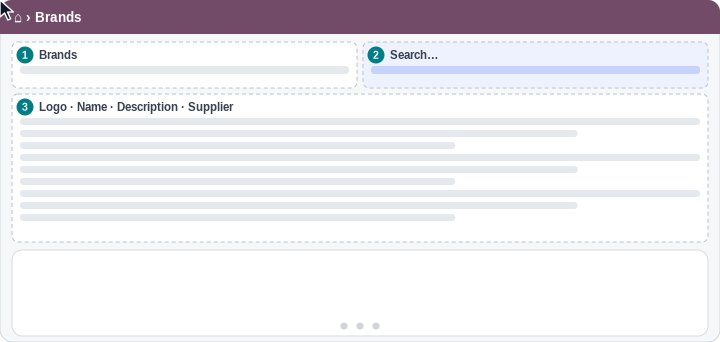
In the brands list, each brand appears with its small logo in front of the name, just like the photo of products and families. It is the only visible change: the rest of Brands works as usual.
- Warehouse › Brands, in list view.
- The list's search box, as always.
- The first column is the logo (32 px, boxed); without a logo it comes out empty.
The brand record
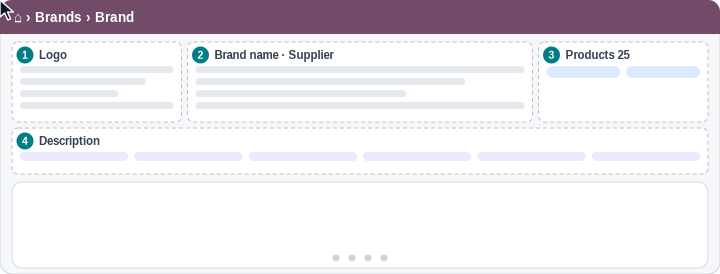
When you open a brand you see the large logo, the name, the linked supplier (optional), the description and a button with the number of products that have that brand.
- Open Brands and press «New» (or open one).
- Press the logo box and choose the image.
- Type the name.
- Save: the logo now appears in the list.
- Press the logo to upload or change the image; it is the same one shown in the list.
- Name (required) and, if you want, the brand's supplier contact.
- The «Artículos» button opens the products of that brand.
- The description is text and can be translated.
The brand on products
In products, the brand is one more field (in the list and in the product record) and you can search and group by brand. The products of a brand are seen from its «Products» button».
When it is installed
It is installed automatically when the Brands module (product_brand) and the GestioERP product images are present. It does not need to be installed by hand and has no settings.
Where the brands are
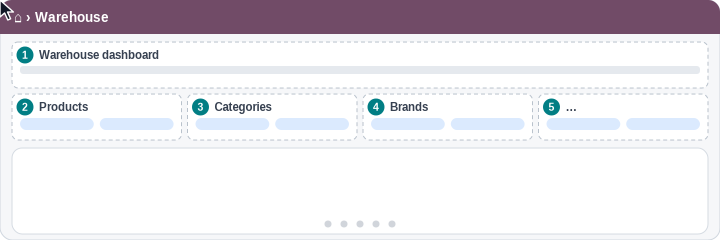
In the Warehouse dashboard, «Brands» button, and also in Sales › Catalogue › Product brands. Both open the same list.
- The Warehouse dashboard.
- Products button.
- Families button.
- The «Marcas» button opens the list with the logos.
- Other dashboard options.
What you need to know
Without a logo, the brand looks the same but with an empty box. The image is stored in the brand itself, so it works everywhere the logo is shown. With several companies, the separation of brands belongs to «Company group: brands».
Questions
- How do I add a logo to a brand?
- Open the brand (Inventory › Brands), press the logo box, choose the image and save. The logo also shows before the name in the brand list.
- Where are the brands?
- In the Inventory panel, «Brands» button, or Sales › Catalog › Product brands. It is the same list, now with the logo before the name.
- What does this module add to brands?
- Just one thing: each brand's small logo before its name in the list, like the photo of products and categories. Everything else about Brands is unchanged.
- The logo doesn't show in the brands list
- If the brand has no logo the box is empty. Open the brand, upload the image and save. Also check you're on the list view (not cards).
- When is Brands with image installed?
- It installs itself when Brands (product_brand) and GestioERP product images are present. No installation or setup needed.
- How do I see a brand's products?
- Open the brand: the «Products» button at the top shows how many it has and opens them. In the product list you can also search and group by brand.
- Can I link a brand to a vendor?
- Yes: on the brand form, the «Vendor» (contact) field is optional. It changes nothing else; it's only a reference.
- What image size suits the logo?
- In the list the logo is small (32 px) and boxed, whole on a white background, so any format works; a square one or one with little margin is best. On the form it shows larger.