
Custom lists
Create your own lists with columns, groups, subtotals and totals, from scratch or from one of the templates, and output them as PDF or Excel.
- Technical name
gerp_listados- Author
- GestioERP · SIAM Cloud
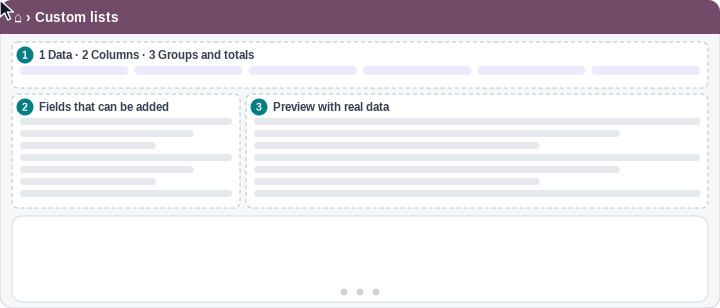
Designer in 3 steps
1 · Data, 2 · Columns, 3 · Groups and totals, with a preview using real data.
- The steps.
- Press a field to add it as a column (also from related tables).
- How it looks, with groups, subtotals and totals. Undo, PDF, Excel, Save.
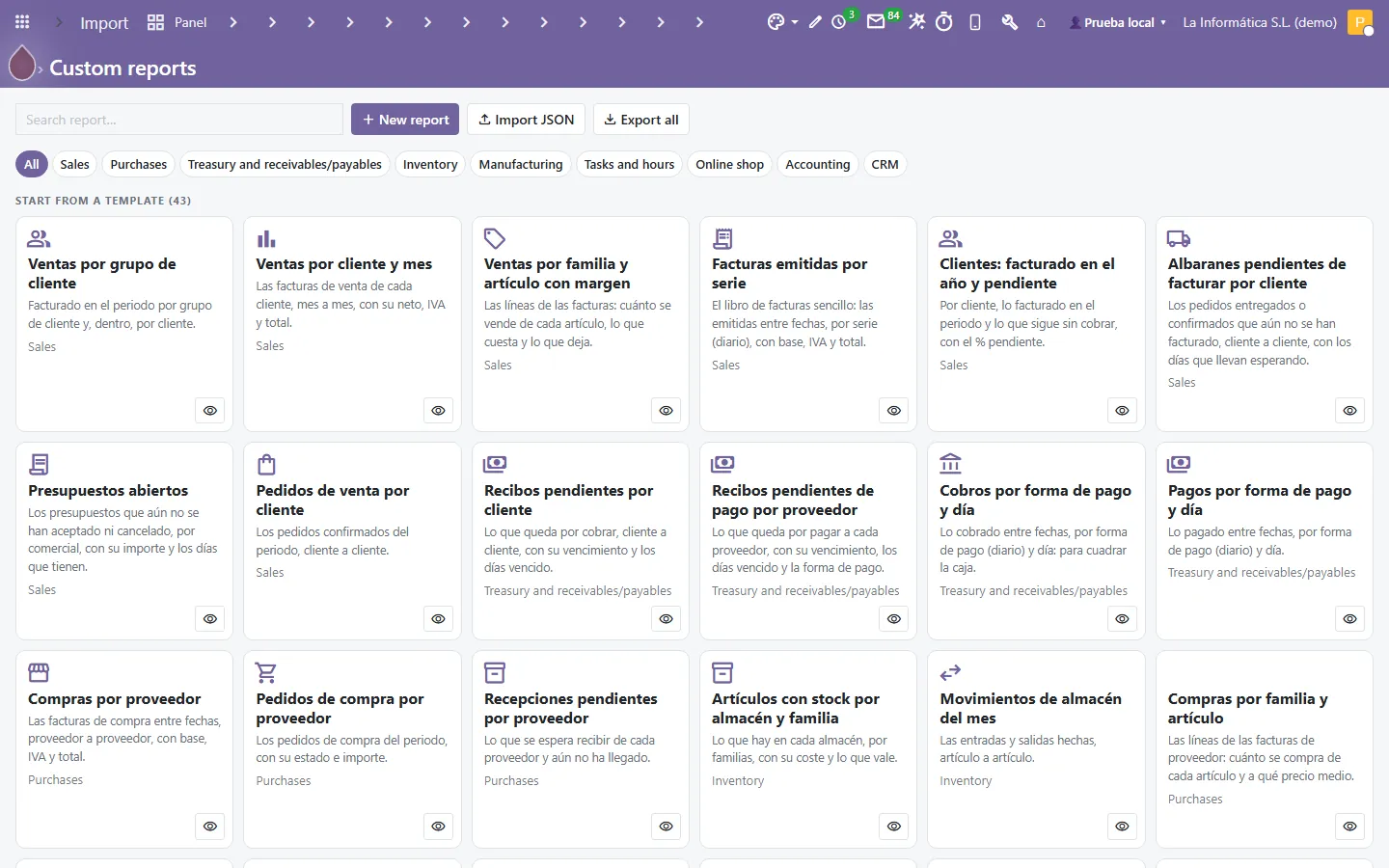
The list templates
In Custom lists, «Start from a template»: sales by customer and month, pending receipts, journal, ledger, trial balance, P&L by month… Saving creates a copy.
The list columns
Step 2 · Columns: press a field (including from related tables, such as Customer › Group) and order them with the arrows; «Format, width and more».
The groups and totals
Step 3 · Groups and totals: choose the groups (nested) and which columns are totalled.
The list filters
Step 1 · Data: source table and filters (dates, statuses…).
Export and import lists
«Export all» or the JSON of one list, and «Import JSON» on the other side.
The list in PDF
PDF and Excel buttons in the designer or the saved list.
Undo in the designer
«Undo» button in the designer.
The list preview
To the right of the designer, with real data (the first rows).
Questions
- How do I build a custom report?
- Sales › Custom lists: new list or from a template; choose data, columns and groups, and save.
- How do I start from a template?
- «Start from a template».
- How do I add a column?
- Step 2 · Columns: click a field.
- How do I group by customer with subtotals?
- Step 3 · Groups and totals.
- How do I filter a report by date?
- Step 1 · Data.
- How do I move a report to another company?
- «Export all» and «Import JSON».
- How do I print a report?
- PDF and Excel buttons.
- How do I undo a change?
- «Undo» button.