
PDF document design
Quotes, orders, delivery notes and sales and purchase invoices in PDF as in GestioERP: header with the company logo and details, the photo of each product (or of its family) on the lines and the terms and conditions with signatures at the end, selectable by company and by document type.
- Technical name
gerp_documentos_pdf- Author
- GestioERP · SIAM Cloud
What this module does
Gives the documents you print or send by email the GestioERP look: quotes, orders, delivery notes and invoices, both sales and purchases. It adds a header with the logo and company details, the photo of each product on the lines and, at the end, the terms and conditions with the signatures. Everything is switched on or off per company.
- Open «Sales › Settings › PDF documents › Document design» (also in Purchases and in Invoicing).
- Turn on what you want and press «Save».
- Press «View a quote» to see how it looks in a real PDF.
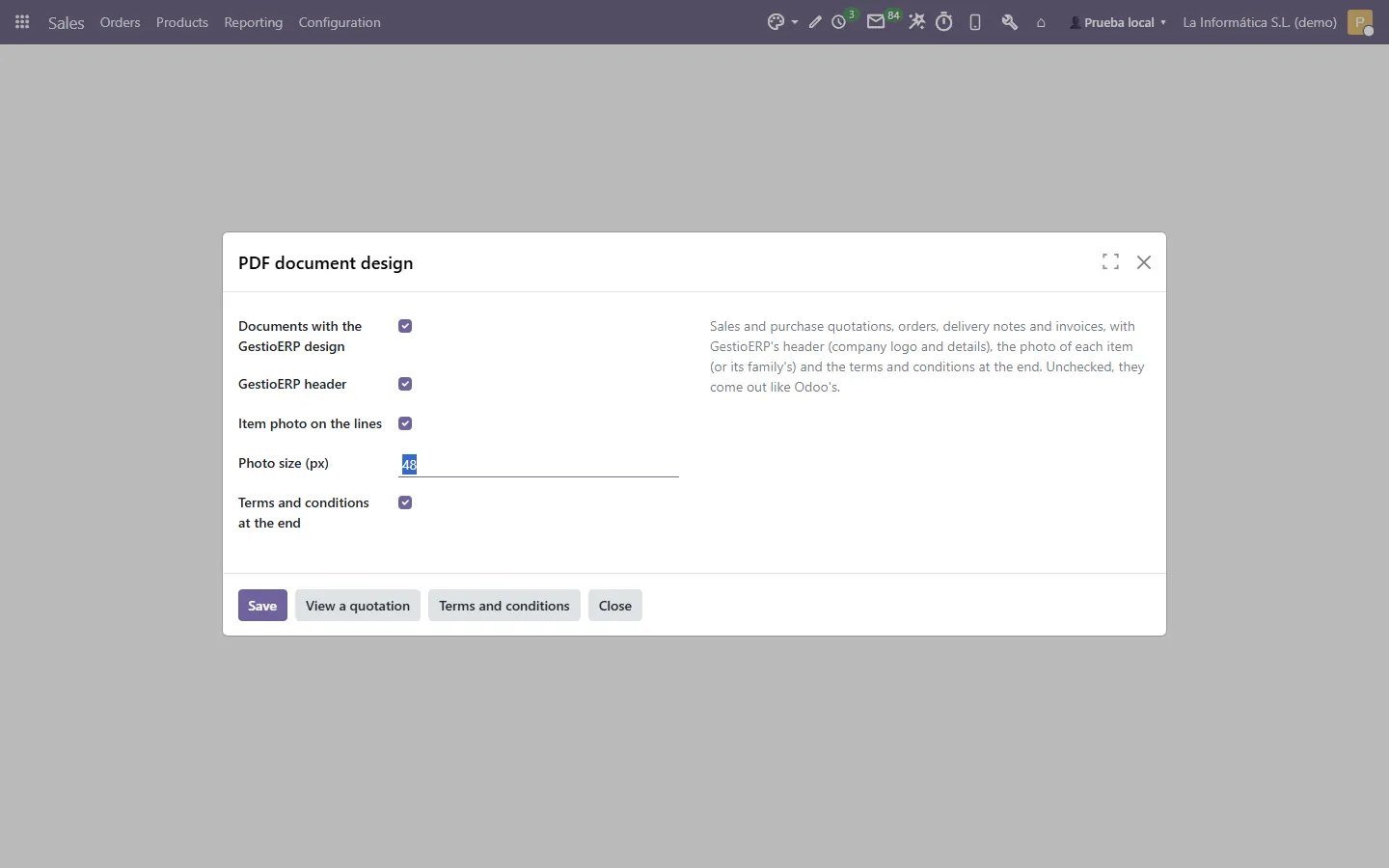
Document design: what is switched on
A window with the four options of the current company. Anyone with the permission can use it even if they are not an administrator; administrators have the same in Settings › «GestioERP PDF documents».
- Company: the settings apply to the company you have active (each company has its own).
- Master switch: if you uncheck it, all documents come out like Odoo's.
- Header: logo on the left; name, tax ID, address, phone, email and website on the right; and at the foot the company details and «Page x / y».
- Product photo: on each line the product photo appears or, if it has none, that of its category; the size goes from 24 to 160 pixels (default 48).
- Terms and conditions: if checked, the one that applies to each document type is printed at the end.
- «Save» applies the changes; «View a quote» opens the PDF of the company's latest sales quote; «Terms sheets» opens the list of terms sheets.
Which documents change
It applies to eight document types, and with them to their printing and to the emails that attach them.
- Sales: quotes, orders, delivery notes (the delivery one and GestioERP's valued delivery note) and invoices.
- Purchases: quotes (requests for quotation), orders, delivery notes in and supplier invoices.
- A sales quote becomes an «order» when it is confirmed; that change decides which rider applies to it.
- With the photo enabled, the lines of sales, purchase, invoice and delivery note documents show the image next to the product name.
Terms and conditions
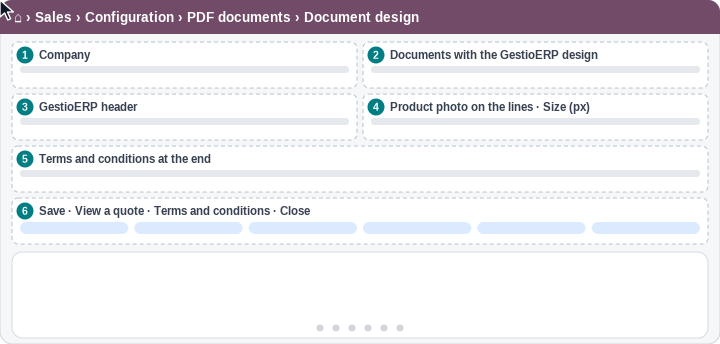
A rider is the text of terms (validity, payment method, deadlines, warranty…) that appears at the end of the document, on a separate page if you wish and with the signatures of the company and the customer. They are created in «Terms and conditions» and each one says in which documents it appears.
- Internal name of the terms sheet (for example «Works conditions» or «Equipment warranty»).
- How it comes out: title shown above (empty, no title), separate sheet to start on a new page, signatures («Por la empresa» and «Conforme, el cliente») and the company it belongs to (empty: valid for all).
- The eight checkboxes: sales and purchase quotes, orders, delivery notes and invoices where this sheet must appear.
- You can also use a ready-made text from «Texts» (GERP's texts module): that one is shown and it is changed from there.
- The content: you can use {empresa}, {nif_empresa}, {cliente}, {nif_cliente}, {documento} and {fecha}, which the PDF replaces with the document data.
- The list shows in which documents each sheet appears («Only if chosen» if it has none ticked); they are reordered by the handle.
Choose another terms sheet, or none, in a document
By default, the terms and conditions that match the document type are printed (the company's first, then the common ones, in list order). If a document needs a different one, change it in the document itself, in the «PDF document» group».
- Open the quote, order, invoice or delivery note.
- Find the «PDF document» group: it is in the document's additional information tab («Other information» on quotes, orders and invoices; «Additional information» on delivery notes; on purchase orders, the delivery and invoice tab).
- Choose another «Terms sheet», or check «No terms sheet» so that document comes out without it.
- That group is only visible with the permission «Choose another terms sheet (or none) in a document».
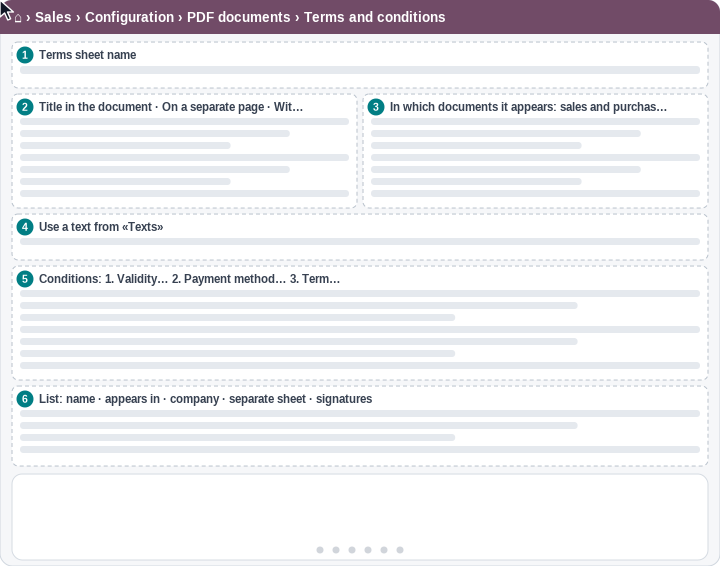
- The document (here a sales quote); when printed, the company design is applied.
- The «PDF document» group is in the additional information tab of the document.
- «No terms and conditions»: if checked, that document is printed without terms and conditions even if the company has one for that type.
- «Terms and conditions»: empty («The one that applies») uses the company's for that type; if chosen, uses that one. Only visible with the permission to choose terms and conditions.
- The result: company header, lines with the product photo and, at the end, the terms sheet (on a separate page if so set) with the signatures.
Example included
The module includes a sample terms sheet, «General conditions (example)», with seven clauses (validity, payment, deadline, changes, materials, warranty and acceptance). It does not appear in any document until you mark where; it serves as a model to copy and adapt.
Permissions
In Internal users, section «PDF document design»: the main permission gives the menus and viewing the terms sheets; «Turn the header, photos and terms sheets on or off» allows saving the settings; «Create and edit terms sheets» allows creating and editing them; and «Choose another terms sheet (or none) in a document» lets you change it on each document. Anyone can print the documents, as always.
Questions
- How do I put the logo on invoices and quotes?
- «Sales › Configuration › PDF documents › Document design»: tick «Documents with the GestioERP design» and «GestioERP header» and save. The logo is the company's; if missing, upload it in the company form.
- Which details appear in the header?
- Logo on the left and, on the right, the company's name, tax ID, address, phone, email and website. At the bottom, the company footer (or name, tax ID, phone and email) and «Page x / y». Details are changed in the company form.
- How do item photos appear on the quote?
- Tick or untick «Item photo on the lines» in «Document design». The item's photo shows or, if it has none, its family's. Size ranges from 24 to 160 pixels (default 48).
- What is a terms and conditions sheet?
- It is the conditions text (validity, payment terms, deadlines, warranty…) printed at the end of the document, on a separate page if you wish and with «For the company» and «Accepted, the customer» signature lines. Created in «Conditions sheets».
- How do I create a conditions sheet?
- «PDF documents › Conditions sheets» › «New»: name, title, conditions text, whether on a separate page and with signatures, and tick which documents it appears on (quotes, orders, delivery notes or invoices, sales and purchases).
- How do I put the customer's name and date in the conditions?
- Write the placeholders {empresa}, {nif_empresa}, {cliente}, {nif_cliente}, {documento} and {fecha} in the text: the PDF replaces them with your company's and the customer's name and tax ID, the document number and its date.
- How do I print a document without conditions?
- In the document, «PDF document» group (in the document's additional information tab, «Other Info» on quotes and orders): tick «No conditions sheet» or pick another one. You need the permission to choose a sheet on a document.
- Which sheet appears on each document?
- The sheet ticked for that document type shows: company sheets first, then shared ones, and among them the first by list order. It won't show if the document has «No sheet», the sheet is empty, or «Conditions sheet at the end» is unticked for the company.