
Support: logged hours
Log the hours worked on each support ticket (Odoo timesheets), with the team's project, the total hours on the ticket and a list and an analysis of support hours.
- Technical name
gerp_helpdesk_timesheet- Author
- GestioERP · SIAM Cloud
Log hours on a ticket
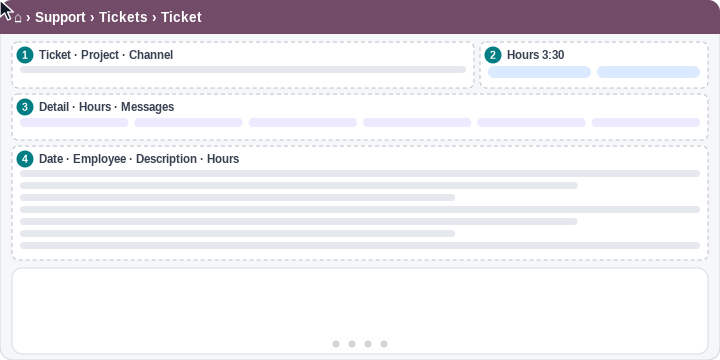
In the ticket record the «Hours» tab appears (only if you have the «Recorded hours» permission). Each line is an Odoo timesheet: date, employee, description and hours.
- Open the ticket in Support › Tickets.
- Check that the «Proyecto» is set (if not, choose it).
- Go to the «Hours» tab and press «Add a line».
- Enter the date, the employee, what you did and the hours (for example 1:30).
- Save: the total appears on the «Hours» button and on the ticket.
- The «Project» where the hours are recorded: it comes from the ticket's team and you can change it.
- The «Horas» button shows the ticket total and opens the list of its timesheets.
- The «Hours» tab, next to the ticket description.
- One line per hours report; below, the total. Hours are in hours:minutes format.
The project of the hours
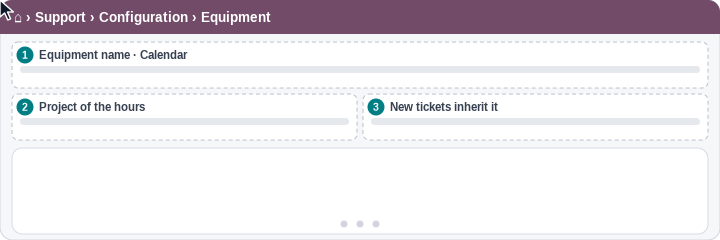
Odoo always logs hours to a project. In the support team you choose the «Hours project» and all its tickets use it; in a specific ticket you can set another. If there is no project in either the ticket or the team, Odoo warns you and does not let you log the hour.
- The support team record.
- Choose a project with «Timesheets» activated (if none exists, it can be created from the field itself).
- A new ticket from the team brings that project; if it already had one, it is not changed.
Support hours: list and analysis
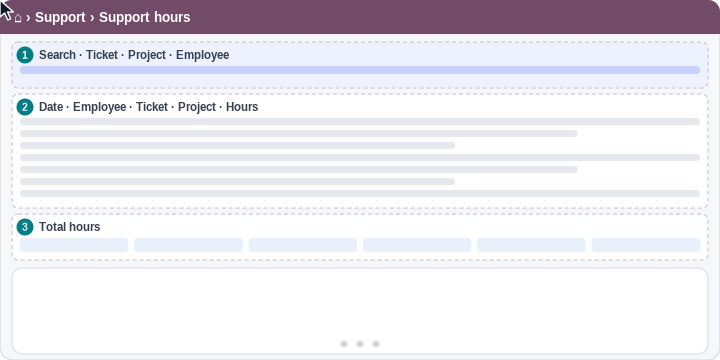
The Support › Support hours menu lists all the timesheets linked to a ticket, with list view, pivot table, chart and form, and can be filtered by ticket.
- Filter by ticket, project, employee or date; group as you like.
- Each row is a timesheet; you can switch to pivot table or chart to see hours per employee or month.
- The sum of the hours you see.
Who can see it
The hours, the project and the «Support hours» menu only appear to those who have the «Hours charged» permission (key soporte.horas) in Internal users, button of the Support dashboard. In the ticket list you can show the optional «Hours charged» column».
Questions
- How do I log hours on a ticket?
- Open the ticket (Support › Tickets), go to the «Hours» tab, add a line with date, employee, description and hours, then save. The total shows on the ticket's «Hours» button.
- It won't let me log hours: it asks for a project
- Hours always go to a project. Set the «Project» on the ticket or, better, the «Hours project» on the team (Support › Configuration › Teams) so every ticket gets it automatically.
- How do I set the team's hours project?
- In Support › Configuration › Teams open the team and fill in «Hours project» (timesheets enabled). New tickets of the team inherit it; tickets that already had a project are unchanged.
- How many hours are on a ticket?
- The ticket's «Hours» button adds up the logged hours and opens its timesheets. In the ticket list you can enable the optional «Hours logged» column.
- Where do I see all support hours?
- Support › Support hours: every timesheet linked to a ticket, as list, pivot and graph, filterable by ticket, project or employee.
- I can't see the Hours tab on the ticket
- You need the «Hours logged» permission (key soporte.horas) under Internal users, a button of the Support panel. Without it the tab, project, button and menu are hidden.
- Which employee do I put on an hours line?
- On each line you choose the employee who did the work (your own employee record or a colleague's) and the hours as hours:minutes (1:30 is an hour and a half).
- What does this add-on install?
- It installs itself when Support and Odoo timesheets are present. It adds project, tab and hours total to tickets, the project on the team and the «Support hours» menu. With «Support: invoice the hours» those hours can be invoiced.