
Human resources (payslips and staff)
The staff part in one place: Human resources dashboard, payslip data in the employee record, payslips calculated or scanned with AI with their payroll journal entry, Social Security, IRPF and payment, payslips attached to the worker in their TimeTracker, and access to absences, expenses, timesheets and projects.
- Technical name
gerp_rrhh- Author
- GestioERP · SIAM Cloud
The Human resources dashboard
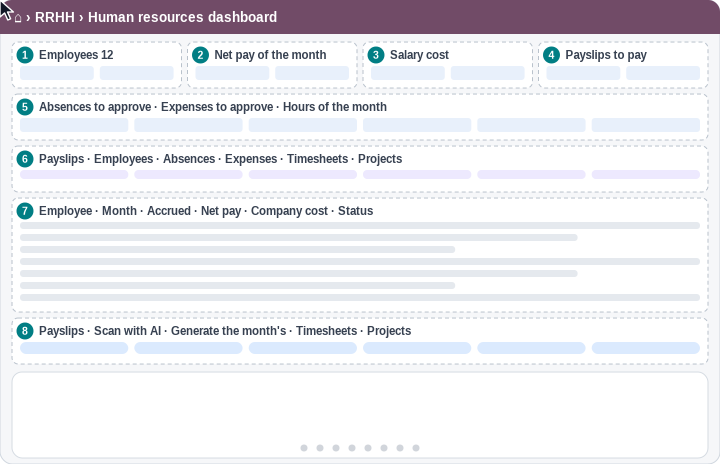
All the staff on one screen: this month's figures, a list of what matters and the buttons for staff tasks. It is opened from HR › Human resources dashboard.
- How many employees the company you are working with has.
- The net pay of this month's payslips, with how many payslips there are.
- The salary cost of the month: what has accrued plus the company's Social Security.
- The confirmed payslips that are not yet paid; press the figure to see them.
- More figures if the modules are installed: absences and expenses pending approval, and the hours charged to projects this month.
- The list tabs: payslips (filters: this month, draft, to pay, paid, all), employees, absences, expenses, timesheets and projects. Each one has a search box.
- Each row opens with one click on the corresponding record.
- The buttons for staff tasks; depending on your permissions, some or others appear.
The employee record: payslip data
In the Odoo employee record there is a «Payslip» tab and a «Payslips» button with the number of the employee's payslips. With the data in the tab, the program calculates the payslip every month without you typing anything.
- Open the employee in HR › Employees and go to the «Payslip» tab.
- Type the annual gross salary and choose 12 or 14 payments.
- Enter the IRPF percentage of their payslip (and adjust the Social Security ones if they are not the usual ones).
- Save: it can now enter «Generate the month's payslips».
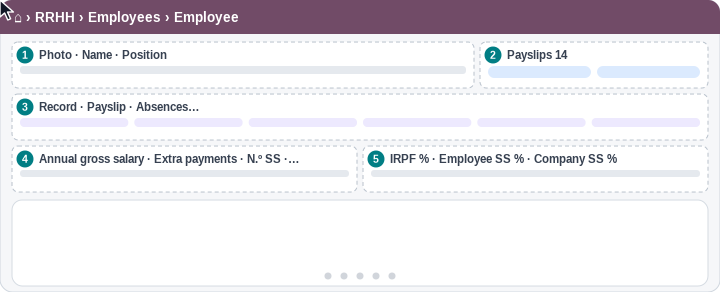
- The employee record, as always.
- The «Nóminas» button opens all the payslips of that employee.
- The «Payslip» tab is added by this module.
- Annual gross salary, payments (12, or 14 with two extra), Social Security number and contribution group.
- IRPF withholding, employee Social Security (6.35 % by default) and company Social Security (31.40 % by default).
Generate the month's payslips
With one click, the payslips for a month are created, as drafts, for all employees who have a gross salary in their record. The month and year default to the current ones. Employees who already have a payslip for that month are skipped; if all of them have one, it warns you.
- Go to HR › Generate the month's payslips.
- Check the month and the employees.
- Press «Generate».
- Review each payslip and, if it is correct, confirm (they are posted).
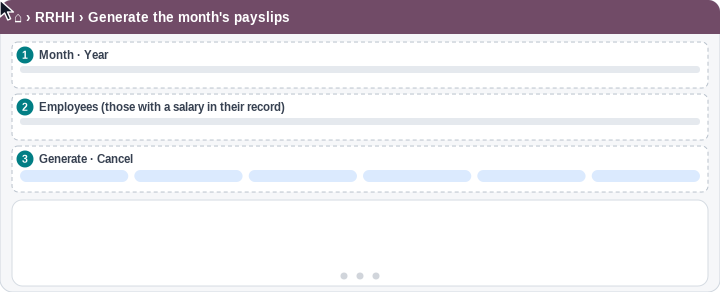
- The month of the payslips.
- All those with a gross salary appear, and you can remove or add.
- «Generate» creates the payslips as drafts and shows them in a list.
Scan payslips with AI
Upload the PDFs or photos of the payslips from the tax advisor and the AI reads each one: the employee (by tax ID, by name or from the employee list), the month, the earnings, Social Security, IRPF and the net pay. It leaves each payslip as a draft for you to review. It uses the same AI as Contabilidad GestioERP.
- Go to HR › Scan payslips (AI).
- Upload the PDFs or photos.
- If they all belong to one person, choose them; if not, leave it empty.
- Press «Read and create the payslips».
- Open each one: check the AI warnings and fix whatever is needed.
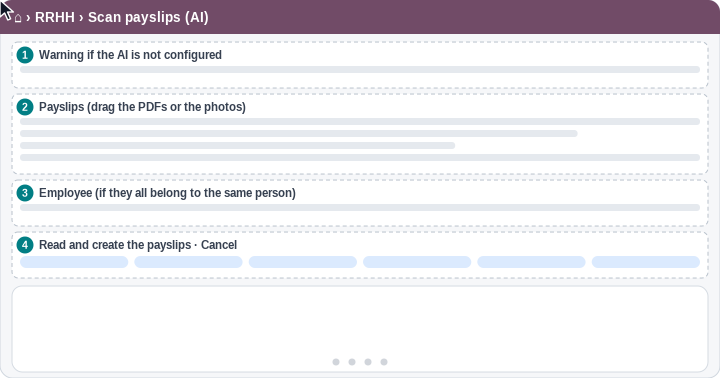
- If the AI is not configured (Accounting GestioERP settings), the payslips are created with their PDF but not filled in.
- Accepts PDF and JPG, PNG or WEBP photos; you can upload several at once.
- Optional: if you leave it empty, the AI looks for the employee in each payslip.
- Creates one payslip per file and takes you to the list of scanned payslips.
The payslip record
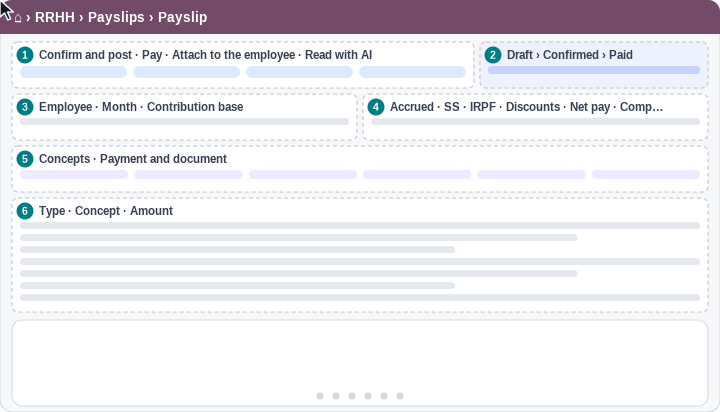
A payslip has its employee, the month and year, the contribution base, the concepts and the totals. It goes through three states: Draft, Confirmed and Paid. Each change is kept in the history (chatter).
- The buttons change with the status: Confirm and post (draft), Pay (confirmed), Back to draft, Undo the payment, and «Attach to the worker» or «Remove from TimeTracker».
- The current status of the payslip.
- When you choose the employee on a payslip with no concepts, the month is calculated from their record.
- The totals are calculated automatically from the items: net pay = gross earnings minus social security, IRPF and deductions; cost to the company = gross earnings plus the company's social security.
- «Conceptos» has the lines; «Pago y documento», the bank, the date, the payment journal entry, the PDF and the TimeTracker document.
- Concept types: Earnings, Employee Social Security, IRPF withholding, Other deduction (advance, garnishment…) and Company Social Security.
Confirm, post and pay
«Confirmar y contabilizar» creates the payslip journal entry at month end, in the miscellaneous operations journal: salaries (640) and company Social Security (642) in debit; Social Security (476), IRPF (4751), deductions (460, or 465 if there is none) and pending remunerations (465) for the net amount in credit. «Pagar» makes the payment journal entry from the bank or cash register chosen in «Pagar desde», with the payment date (today by default). «Volver a borrador» and «Deshacer el pago» delete the corresponding journal entry. A payslip can only be deleted in draft, and an employee can only have one per month and company.
Attach the payslip to the employee (TimeTracker)
«Attach to the employee (TimeTracker)» publishes the payslip on the employee's clocking screen, in their «Nóminas» tab, as a document of category «Nómina» with its PDF and its figures (gross, IRPF, Social Security, base and net). The PDF is the scan from the accountancy firm or, if there is none, a salary receipt generated by the program. «Quitar del TimeTracker» removes it. If you attach it again, the same document is updated.
Staff cost and other menu options
In the payslips list, the pivot table view shows the staff cost: months in rows, employees in columns and the company cost and net pay as measures. The rest of the HR menu brings together the staff items Odoo already has: Employees, Departments, Absences and holidays (those of the TimeTracker), Employee expenses and Expense reports (with the receipts read by AI), Timesheets and Projects. If Attendances or Recruitment are installed, they appear too, along with absences to approve and their allocations.
Permissions
Everything is granted or removed in Internal users, with these keys: «rrhh» (see the dashboard and the menu), «rrhh.nominas» (see the payslips), «rrhh.escanear» (scan them with AI), «rrhh.generar» (generate the month's), «rrhh.nominas_admin» (confirm, pay, attach to the employee, return to draft and delete), «rrhh.horas» (hours reports) and «rrhh.proyectos». Payslips belong to each company: you only see those of the companies you work in. Anyone who already administered the TimeTracker or saw Human resources receives all the new permissions on installation.
Questions
- Where is Human Resources?
- In the top menu, HR › Human Resources panel: monthly figures (employees, net pay, payroll cost, payslips to pay, leaves and expenses to approve, hours), tabs with the lists and the HR buttons.
- How do I create this month's payslips?
- HR › Generate this month's payslips: choose month and year, check the employees (those with a gross salary on their record) and press «Generate». Drafts are created for you to review and confirm.
- It doesn't generate an employee's payslip
- To generate it the employee needs the «Annual gross salary» on the «Payroll» tab of their record. And if they already have a payslip for that month it is skipped (one per employee, month and company): delete it or change its month.
- How do I set an employee's pay?
- On the employee record, «Payroll» tab: annual gross salary, payments (12, or 14 with extras in June and December), Social Security number, contribution group, income-tax %, employee SS % (6.35 default) and company SS % (31.40 default).
- How is the payslip calculated from the record?
- Month base salary = annual gross divided by payments; with 14 payments June and December also carry an equal extra payment. Employee SS, income tax and company SS are their percentage of what is earned. Net = earned minus SS, tax and deductions; company cost = earned plus company SS.
- How do I scan the payslips from the accountant?
- HR › Scan payslips (AI): upload the PDFs or photos, and if all belong to one person pick them; press «Read and create payslips». The AI fills employee, month, earnings, SS, income tax and net pay and leaves each payslip as a draft to review.
- The AI misread the payslip
- Open the draft payslip: at the top the AI's confidence and its notes appear (employee not found, net pay mismatch, duplicate for the month). Pick the employee by hand and fix the lines. With the PDF uploaded you can press «Read with AI» to try again.
- Payslips are created blank
- The AI is set up in Settings › GestioERP Accounting (the same one that reads invoices). Without it payslips are created with their PDF attached but no lines: fill them in by hand.