
TPV GestioERP
The GestioERP POS in Odoo for PDA, tablet and web: code reader, mixed collection, parked tickets and tables, cash count and closing, returns and offline; it saves to the Odoo POS.
- Technical name
gerp_tpv- Author
- GestioERP · SIAM Cloud
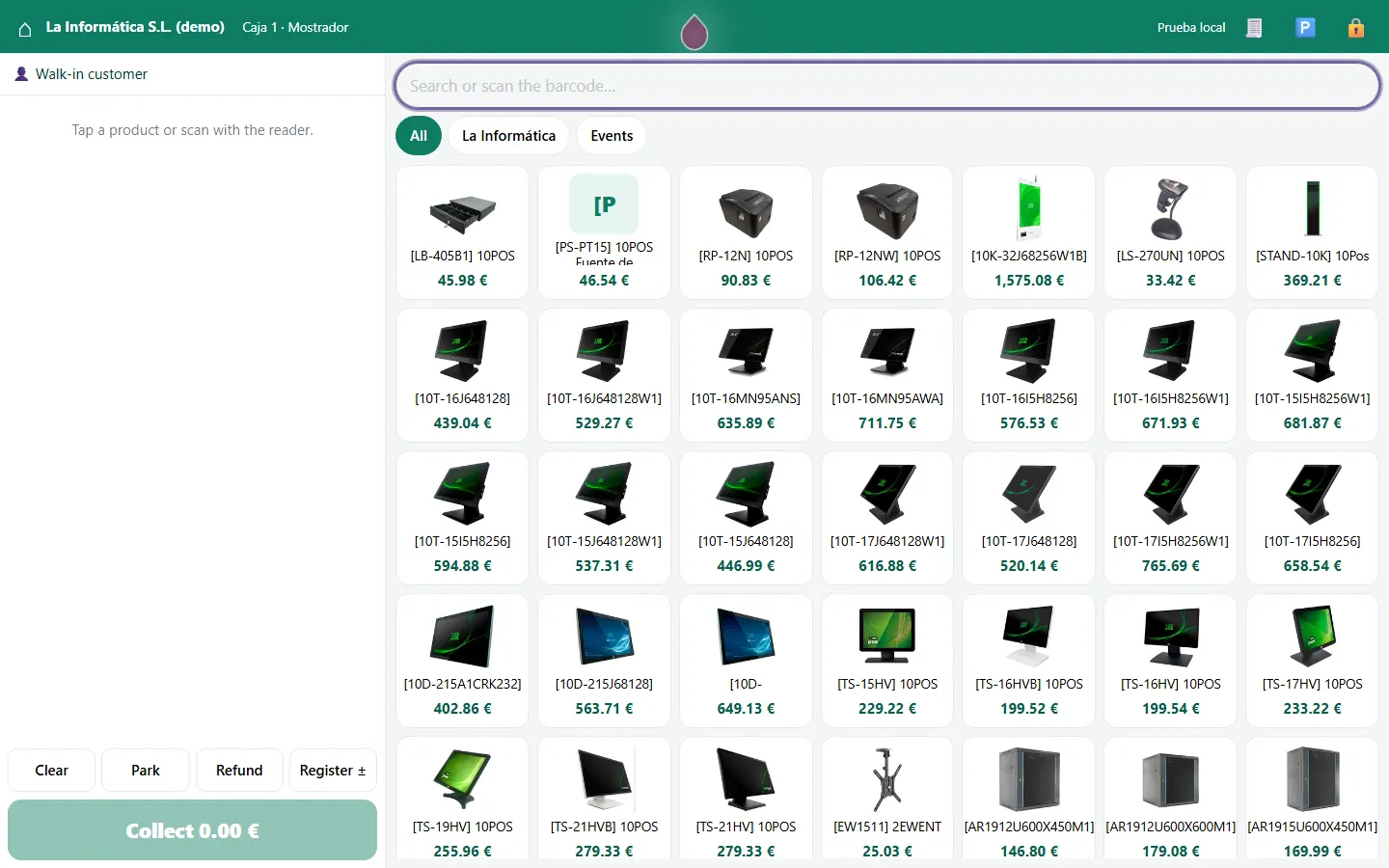
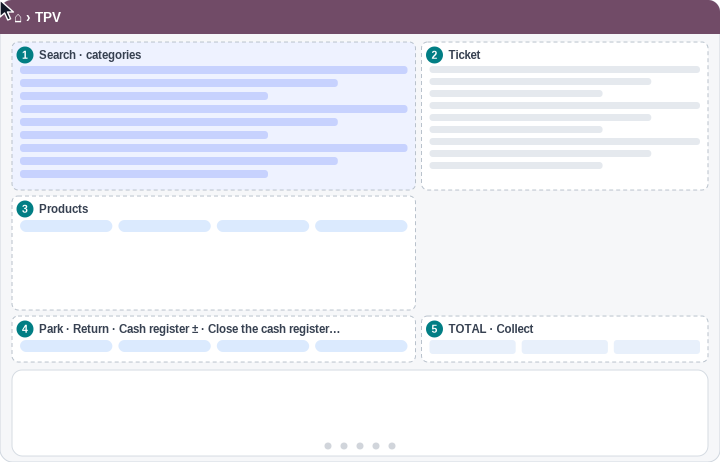
Sales screen
Tap a product or pass the reader.
- Search box and families.
- The receipt lines (quantity, discount, price with VAT).
- Tap to add.
- Park or table, return, cash in/out and Z close.
- Total and collect (cash, card or mixed, with change).
Open the cash register
In the POS, «Open the cash register» with the opening cash; if there is no register, create it in the Odoo POS settings.
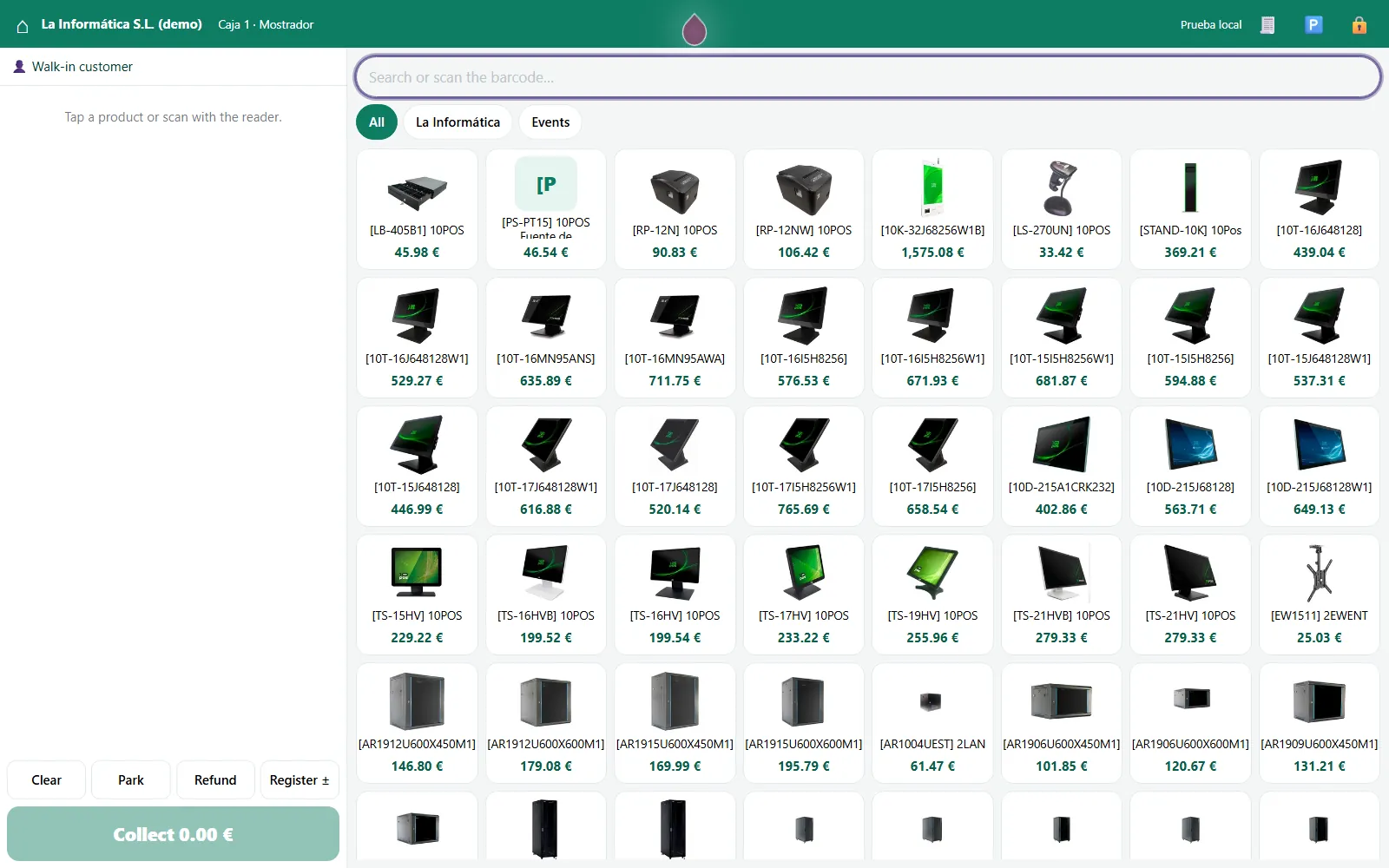
Collect a ticket
«Collect»: cash (with the amount tendered and the change), card or mixed; «Print ticket».
Park a ticket
«Park» saves the ticket (or table) and starts another; get it back from the list of parked tickets.
A return at the POS
«Return»: find the ticket and «Return what is left» (or the lines).
The cash register closing
«Close the cash register (Z)»: count the cash, see what is short or over, and the Odoo POS session is closed.
Cash in or out of the register
«Cash register ±»: cash in or out with the reason; it appears in the cash count.
The code reader
Scan the barcode: the product is added to the ticket.
The discount on the ticket
On the line, «Discount %» and «Apply».
The offline POS
If the connection drops, «Offline» appears and it keeps selling; everything is uploaded when the connection returns.
The POS by type of business
It is turned on per company and business type (shop, hospitality…); it needs an Odoo POS register.
Questions
- How do I open the till?
- «Open the till».
- How do I take a payment?
- «Pay».
- How do I park a ticket for later?
- «Park».
- How do I refund a ticket?
- «Refund».
- How do I close the till?
- «Close the till (Z)».
- How do I take money out?
- «Cash ±».
- How do I sell with the scanner?
- Scan the barcode.
- How do I apply a discount?
- «Discount %».