
Claim pending invoices
Claim from customers what they owe, invoice by invoice or all together, by email (with the PDFs) or by WhatsApp (with the link to download them), including pending amounts without an invoice; and automatic collection reminders for overdue amounts.
- Technical name
gerp_reclamar- Author
- GestioERP · SIAM Cloud
Claim an invoice
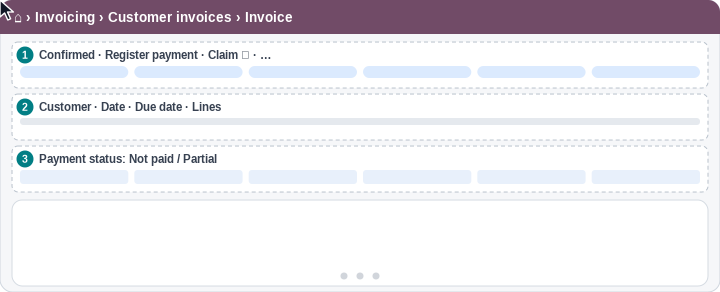
Open a posted customer invoice that is not paid (or only partly paid): the «Claim» button with a bell appears in the header. It opens the claim window with that invoice already chosen.
- Open the pending customer invoice.
- Press «Claim» in the header.
- Review the window (channel, recipient, text) and press «Send by email» or «Open WhatsApp».
- The «Reclamar» button only appears on posted customer invoices, unpaid or partially paid, and to whoever has the Odoo invoicing permission.
- The invoice being claimed.
- Once the invoice is fully paid, the button disappears.
Claim everything a customer owes
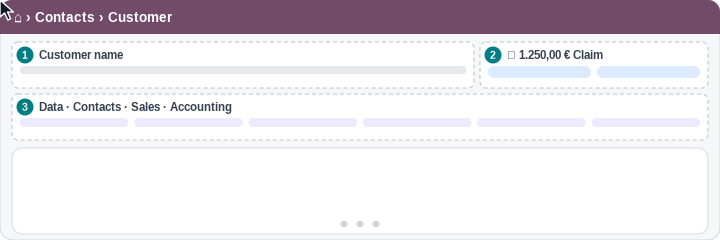
In the customer record (contact), at the top, there is a «Claim» button with the amount pending collection. It claims everything they owe at once: invoices, pending credit notes and the balance coming from an opening journal entry. If they owe nothing, the button does not appear.
- The business customer: if you open a contact of a company, the claim goes to the company.
- The button shows the pending amount (unreconciled items to collect, overdue or not). Pressing it opens the window with everything pending.
- The normal tabs of the customer record; the button at the top is the only thing this module adds.
Claim several invoices from the same customer
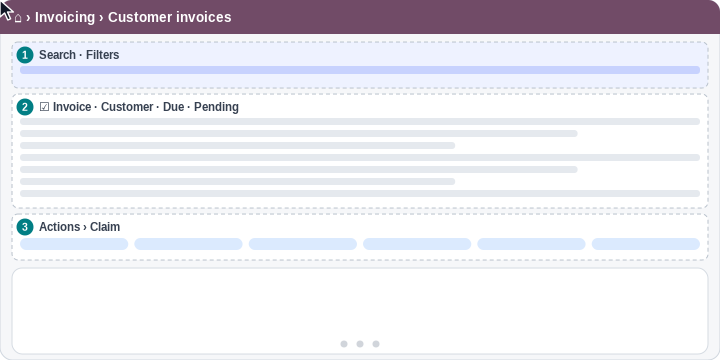
In the customer invoices list check the invoices (all from the same customer), open the «Actions» menu and choose «Claim». They are claimed together in a single message. If you choose invoices from different customers, Odoo warns you.
- Filter by customer to see only their invoices.
- Tick the boxes of the invoices you want to claim.
- The «Actions» menu of the list, with «Claim»; only for those who invoice.
The claim window
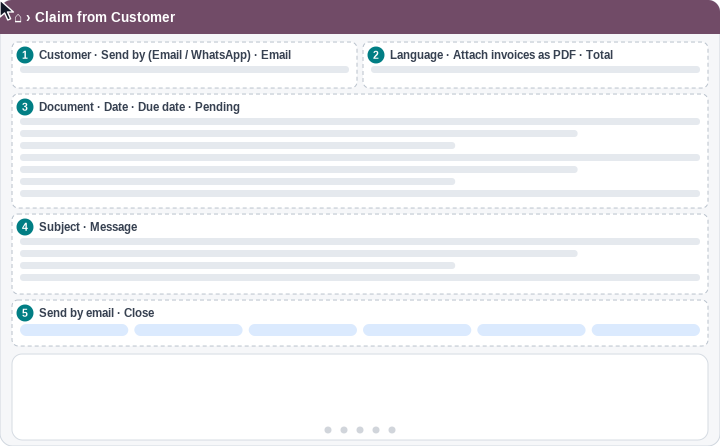
What is being claimed (the pending lines, with document, date, due date and the amount left), the channel, the recipient, the language and the message, which writes itself and you can change before sending it.
- Choose the channel and check the email or the mobile.
- Choose the language.
- Remove the lines you do not want to claim.
- Read and, if you want, change the message.
- Press send.
- «Send by» choose email or WhatsApp; email comes first if the customer has one, or WhatsApp if they only have a phone. The email or mobile number is filled in automatically from the record and can be corrected.
- Message language: Spanish or Catalan (the customer's, if Catalan). «Attach the invoices as PDF» only applies to email. The total is recalculated.
- The lines being claimed: you can remove the ones you do not want to include and the message and the total are redone.
- The subject and the body with the table of documents and the total; with a link to each invoice in the portal. They can be edited.
- «Send by email» or «Open WhatsApp», depending on the channel.
By email
The email is sent from the company address (or, if it has none, the user's) with the table of what is pending, the total, a link to each invoice in the portal and, if you leave it checked, the invoices attached as PDF. If an invoice cannot be generated as a PDF, the email still carries its link. It is recorded in the history of the customer and of each claimed invoice.
By WhatsApp
WhatsApp (web or app) opens with the message already written: the pending amounts, the total and the link to download each invoice. You review it and press send. A Spanish 9-digit mobile number without a prefix is completed with 34. The claim is recorded in the history when WhatsApp opens.
Automatic reminders
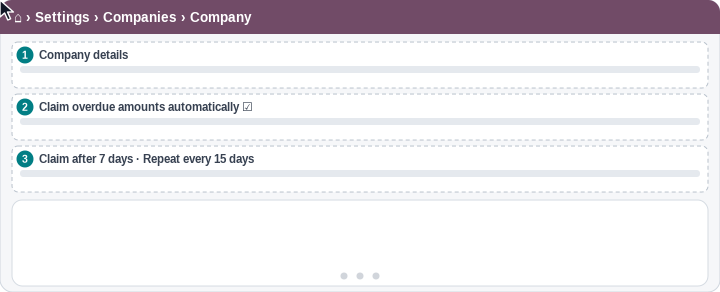
In the company record (Settings › Companies) there is a «Automatic collection reminders» section. When activated, the same claim email, with the PDFs, is sent every day to customers with overdue invoices.
- The company record (there is one per company in the group).
- Checkbox that turns on the reminders only for that company.
- Days past the due date before the first reminder (7 by default) and days between one reminder and the next (15 by default).
Reminder rules
Only customers with an email and with overdue customer invoices to collect are notified (not credit notes or loose balances). It is not repeated before the number of days indicated and, if one customer fails, the others continue. Each notice is recorded in the customer's history. The scheduled process is called «Claim overdue amounts (collection reminders)» and runs once a day.
Questions
- How do I chase an unpaid invoice?
- Open the customer invoice (posted and unpaid) and press «Claim» in the header. Choose email or WhatsApp, check the message and send.
- How do I claim everything a customer owes?
- On the customer record, at the top, the «Claim» button shows what they owe; press it to open the window with all the pending items. If nothing is owed, the button is hidden.
- Can I claim several invoices together?
- Yes, if they belong to the same customer: in the customer invoice list tick them, open «Actions» and choose «Claim». If you mix customers, Odoo asks you to pick invoices of just one.
- How do I claim by WhatsApp?
- In the claim window choose «Send by» WhatsApp, check the mobile and press «Open WhatsApp»: it opens with the message written (pending items, total and each invoice's link) and you press send.
- How do I claim by email with invoices attached?
- Choose «Email», leave «Attach invoices as PDF» ticked and press «Send by email». It also includes a portal link to each invoice; if a PDF can't be generated the link stays.
- Can I edit the claim message?
- Yes: subject and message are written for you and can be edited before sending. Language (Spanish or Catalan) is chosen in the same window, by default the customer's. Changing language or lines rewrites the text.
- How do I turn on automatic payment reminders?
- In Settings › Companies, open the company and tick «Automatically claim overdue items» under «Automatic payment reminders». Every day customers with overdue invoices get an email with the PDFs.
- How often is the automatic reminder repeated?
- Two company settings: «Claim after» N days past due (7 by default) and «Repeat every» M days (15 by default). They appear when you tick automatic claiming.