
SAT (technical service)
Service orders with hours, materials and customer signature; technician app for mobile; maintenance contracts with an hours bank; customer equipment and preventive maintenance that open the order by themselves; workshop with claim slip and outgoing repairs (RMA); quote and invoice from the order, reports and SAT dashboard.
- Technical name
gerp_sat- Author
- GestioERP · SIAM Cloud
SAT dashboard
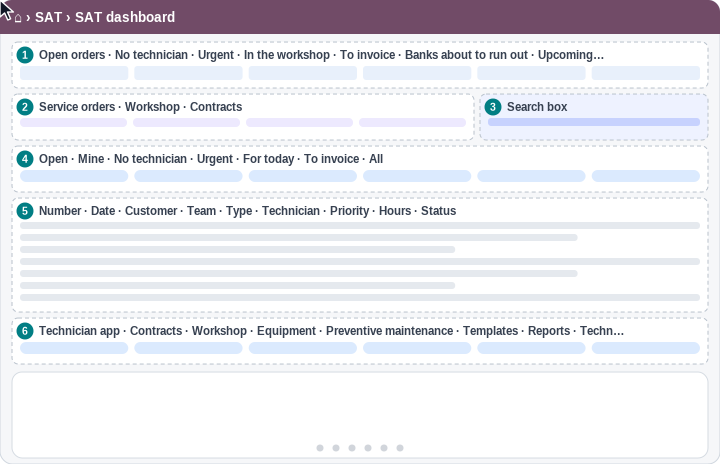
The technical service entry screen: figures for what needs attention today, tabs with the orders, the workshop and the contracts, and the buttons for the other sections.
- Seven figures. If you press one, the list below is filtered automatically: open orders, those without a technician, the urgent ones, the equipment in the workshop, those resolved without an invoice, hours-bank contracts about to run out and the preventive maintenance of the next 30 days.
- The three lists of the dashboard: service orders, workshop (receipt slips) and maintenance contracts.
- Search by number, customer, machine or fault (in the workshop, by receipt slip, machine or customer; in contracts, by code, description or customer).
- Filters of the order list. «Mine» shows only your open orders; «For today», those whose planned date is today; «To invoice», those resolved or closed that do not yet have an invoice.
- The list. Urgent orders appear in red and high-priority ones in orange. One click opens the order record.
- The buttons for the other sections of the SAT. You only see the ones the administrator has given you in Internal users.
The service order
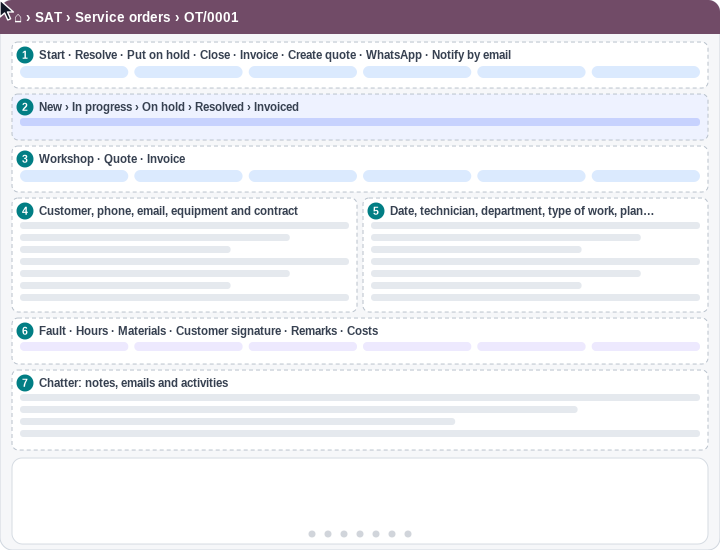
It is the work report: who the customer is, which equipment fails, which technician handles it and what has been done. Everything else (hours, materials, signature, quote and invoice) hangs from it.
- SAT › Service orders › New.
- Choose the customer (the phone and email fill in automatically) and, if there is one, the equipment.
- Type the fault or the work to be done and assign a technician and priority.
- If you already know when it will be done, enter the planned date and the duration: it appears in the calendar.
- The technician presses «Start», records hours and materials and, when finished, «Resolve».
- Afterwards it is closed, quoted or invoiced.
- The buttons change according to the status: «Start» (from New or On hold), «Resolve» (from In progress), «Put on hold», «Close» (from Resolved), «Invoice», «Create quote», «Assign to me» if it has no technician, «Take to the workshop», WhatsApp and email to the customer, «Reopen» and «Cancel».
- The status of the order. An invoiced order cannot be reopened or cancelled.
- Buttons for what hangs from the order: the machine that is in the workshop, the quote or order and the invoice.
- The customer (the phone and email come from them), the equipment, which only offers those of that customer, and the current maintenance contract, which is filled in automatically. A blue strip warns about the contract status and the hours left in the bank.
- The date, the technician (by default, you if you are a technician), the department and the type of work, and the agenda: when it is scheduled and how long it will last. The order appears in the technician's agenda.
- Fault (what needs to be done), hours, materials, customer signature, notes and, for administrators only, costs.
- Everything done on the order is kept in the history; you can also leave notes or schedule activities.
Technician app (mobile)
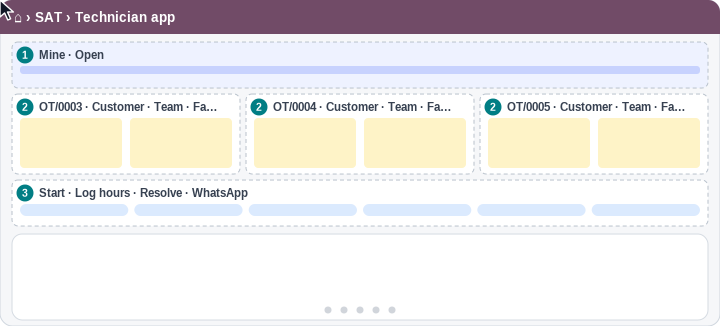
The same list of orders in large cards with buttons, designed for the technician who is out on the road with a mobile phone. It only shows open orders and, by default, yours.
- The «Mine» filter is set by default; remove it to see all the open ones. There are also list and calendar views.
- Each card carries the number, the status, the customer, the machine, the fault, the planned date and the priority. The cards are coloured with the order's colour.
- The buttons for the day: «Start», «Log hours» (opens a quick form), «Resolve» and the WhatsApp icon to notify the customer.
Hours, materials and signature
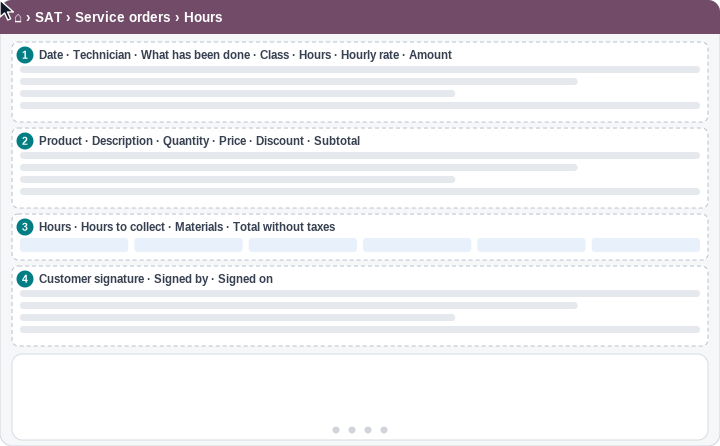
What is noted down during the work. From here come the order amount, the expense of the contract's hours bank and, in the end, the lines of the quote or invoice.
- Each line is a time entry (corrective or preventive). The hourly price is set automatically: if the customer has a bank with hours, it comes out at zero; if it runs out, at the excess price; with hours at an agreed price, that price; with no contract, that of the «Labour» product».
- The materials used. When you choose the product, the description and sale price are filled in, and a discount can be set.
- Order totals: hours, amount of the hours to collect, amount of the materials and total without taxes.
- The customer signs with a finger or the mouse in the «Customer signature» tab; «Leave signed» adds their name and the date.
Quote and invoice
From the order the quote is created or it is invoiced directly, without retyping anything.
- First log at least one hour or one material: otherwise Odoo warns that there is nothing to quote.
- «Crear presupuesto» generates a sales quote with one labor line for each different price and one line per material. If one already exists, it opens it.
- «Invoice» confirms that quote, creates the draft invoice and moves the order to «Invoiced».
- Review and validate the Odoo invoice; from the order, the «Invoice» button opens it.
- Orders resolved or closed without an invoice appear in the «To invoice» filter of the dashboard.
Maintenance contracts
Agreements with the customer of three types: hours bank, hours at an agreed price or a fee per number of machines. The hours on the orders are deducted from the bank automatically.
- SAT › Maintenance contracts › New.
- Choose the customer and the type; set the start and, if there is one, the end.
- In the hours bank, type the contracted hours and when you want the warning (by default, at 2 hours).
- From that moment, the customer's orders link themselves to the current contract and use up the hours bank.
- As the end of the hours bank approaches, a note is left and a «Renew the hours bank» activity is scheduled».
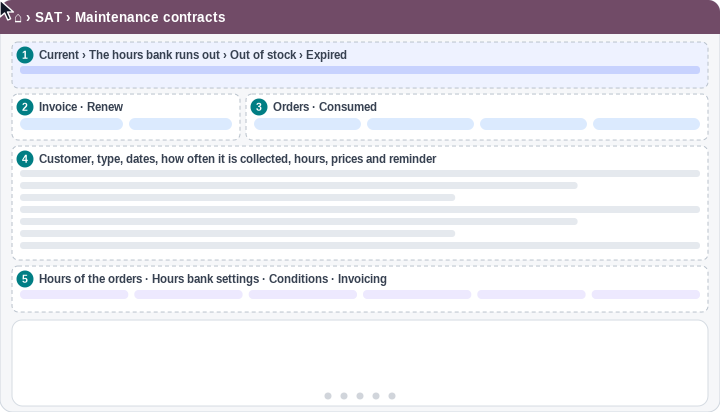
- The status is calculated automatically: «Hours running out» when fewer hours remain than the warning, «Used up» when none remain, «Expired» after the end date and «Inactive» if you archive it.
- «Invoice» creates a draft invoice for the contract amount; «Renew» copies the contract for the next period with the hours bank reset to zero.
- Figure buttons: the contract's orders and the hours consumed, with the detail of each.
- The type decides which fields appear: for the hours bank, the contracted hours, the price per hour if it runs out and when to warn; per equipment, the number of equipment and the price of each; at agreed price, the price per hour.
- The hours spent, the manual adjustments (positive ones subtract from the pool, negative ones return to it), the conditions and the invoices issued.
Customer equipment and preventive maintenance
Each machine, computer or installation of the customer has its record with warranty and history; and each machine can have periodic checks that open the order on their own.
- Maintenance › Preventive maintenance › New: choose the equipment, write what is checked and every how many months.
- Enter the date of the next review and the days of advance notice (by default, 15).
- Every day an automatic task opens the order for the preventive plans that are already within their notice period and do not have one open.
- When that order is resolved or closed, the preventive plan records the check as done and schedules the next one.
- «Crear la orden ahora» opens it without waiting; «Ver la orden abierta» shows it.
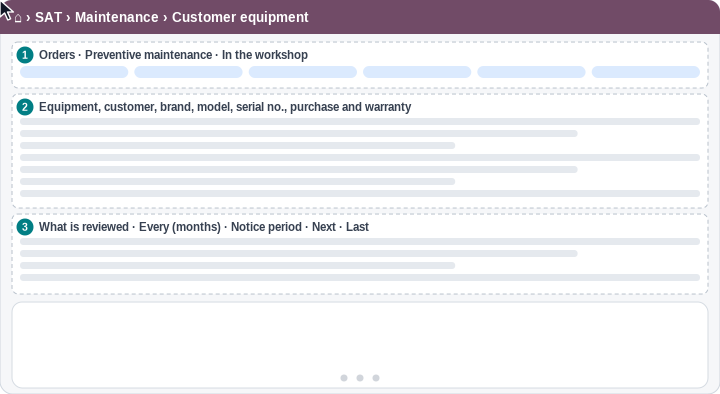
- From the equipment record you open all its orders, its preventive maintenance and what it has in the workshop.
- The equipment details. «Under warranty» is calculated automatically from the warranty date; you can also link the shop product it comes from.
- The preventive maintenance: how many months between checks, how many days in advance the order is created and the date of the next check. Overdue ones are marked.
Workshop and outgoing repairs (RMA)
For the equipment the customer leaves at the counter: check-in slip, diagnosis, quote, repair and delivery with signature; and for those that must be sent to the manufacturer or another technical service.
- SAT › Workshop › Equipment in the workshop › New; choose customer and equipment.
- Note the fault, the accessories and the location; the customer signs the check-in and the receipt slip is printed.
- If it has to be sent out, «Send out (RMA)»: destination (manufacturer, wholesaler, external SAT), reference and shipment tracking.
- When the RMA comes back, the equipment returns to diagnosis; it is repaired and you press «Listo para recoger».
- When handing it over, «Hand over» sets the departure date and who it was handed to.
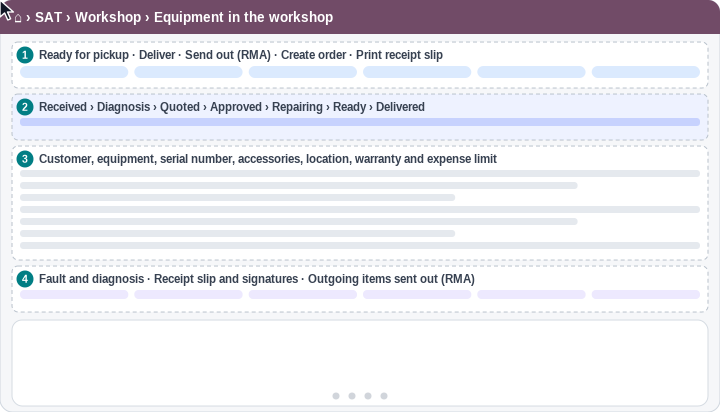
- «Ready for pickup» notifies the customer by email with the workshop template; «Deliver» closes the check-in slip; «Send out (RMA)» creates the outbound shipment; «Create service order» opens the equipment's order; «Print check-in slip» prints the paper for the customer.
- The status of the equipment. It is changed by pressing on it. While there is an RMA not yet returned, the equipment is «Out».
- The claim slip is numbered automatically. It records who brings it, which accessories they leave, where it is in the workshop and up to how much the customer authorises spending.
- What the customer reports and the diagnosis, the conditions and the check-in and check-out signatures, and the shipments out of the equipment.
Reports, templates and agenda
Three analysis reports, the order calendar and the email templates used by the SAT.
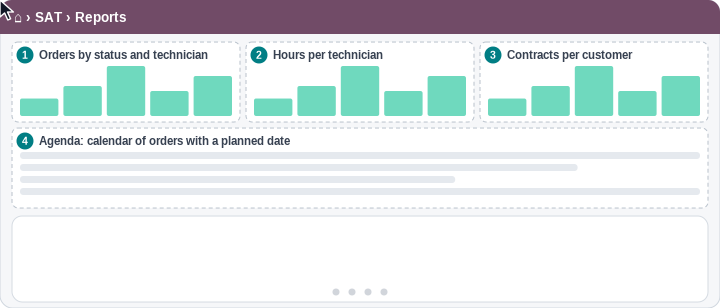
- How many orders there are in each status and per technician, in a chart and in a pivot table.
- The hours logged per technician, per month, type and customer.
- The contracts grouped by customer, with hours and amounts.
- Maintenance › Agenda: the orders with an expected date on a calendar; dragging them changes the date.
Settings and permissions
Technicians, departments and job types are created in SAT › Settings. Each section is granted or removed in Internal users.
- Technicians: record with the Odoo user (with it they see «My orders»), phone, category and cost per hour (what it costs the company, not what is charged).
- Departments and work types: they classify the orders; a type can belong to a department.
- Email templates: the service order notice and the «equipment ready for pickup».
- Permissions in Internal users: «SAT» to view and work the orders, and one permission per button: «Technician app», «Contracts», «Workshop», «Equipment», «Preventive», «Templates», «Reports», «Technicians», «Departments», «Job types» and «Technical wiki».
- The technical Wiki only appears if the wiki module is installed.
Questions
- How do I create a service order?
- SAT › Service orders › New: choose the customer (phone and email fill in automatically), the equipment if any, write the fault and assign a technician and priority. The number is set automatically and the technician gets a notification.
- What states does an order have?
- New, In progress, On hold, Resolved, Closed, Invoiced and Cancelled. «Start» puts it in progress, «Resolve» marks the work as done and «Close» finishes it; it becomes Invoiced when you invoice it. «Reopen» sends it back to In progress unless it is already invoiced.
- How do I log hours on a job?
- In the «Hours» tab of the order, or with «Log hours» from the technician app: date, technician, what was done and hours. The hourly price is automatic: zero if the customer has a bank of hours left, the excess price if it is used up, the agreed price from the contract or, with no contract, the price of the «Labour» product.
- How do I add the materials used?
- In the «Materials» tab of the order: choose the product (description and sale price fill in), the quantity and, if you want, a discount. The subtotal and the order total are calculated automatically.
- How do I quote from an order?
- Log hours or materials first. «Create quotation» generates the sales quotation with labour and materials; «Invoice» confirms the order, creates the draft invoice and sets the order to Invoiced. The «Quotation» and «Invoice» buttons open each document.
- What is the technician app?
- SAT › Technician app shows your open orders as large cards with the day's buttons: Start, Log hours, Resolve and WhatsApp to the customer. Your user must be linked to a technician in SAT › Configuration › Technicians.
- How do I notify the customer about the order?
- On the order, «WhatsApp» opens a chat with the customer's phone and a text with the order number and status; «Notify by email» opens the email with the «SAT: service order notice» template. The buttons only appear if the customer has a phone or email.
- How does a bank of hours work?
- SAT › Maintenance contracts: type «Bank of hours» with the contracted hours. The hours on the customer's orders are deducted from the bank and are free until it is used up; after that, at the excess price. When few hours remain (2 by default) a note and a renewal activity are created.