
The POS and hospitality: printers and devices
How each device connects to the GERP ODOO POS: the receipt printer, the kitchen and bar printers per zone, the cash drawer, the scale, the customer display, the kitchen and pick-up screens, the barcode scanner, the tablet or handheld with the GERP ODOO POS app and what is printed when there is no internet.
- Technical name
gerp_tpv_aparatos- Author
- GestioERP · SIAM Cloud
▶ Video course
Ximena and Marc show you with voice-over and subtitles, in three or four minutes, in Spanish.
The POS receipt printer
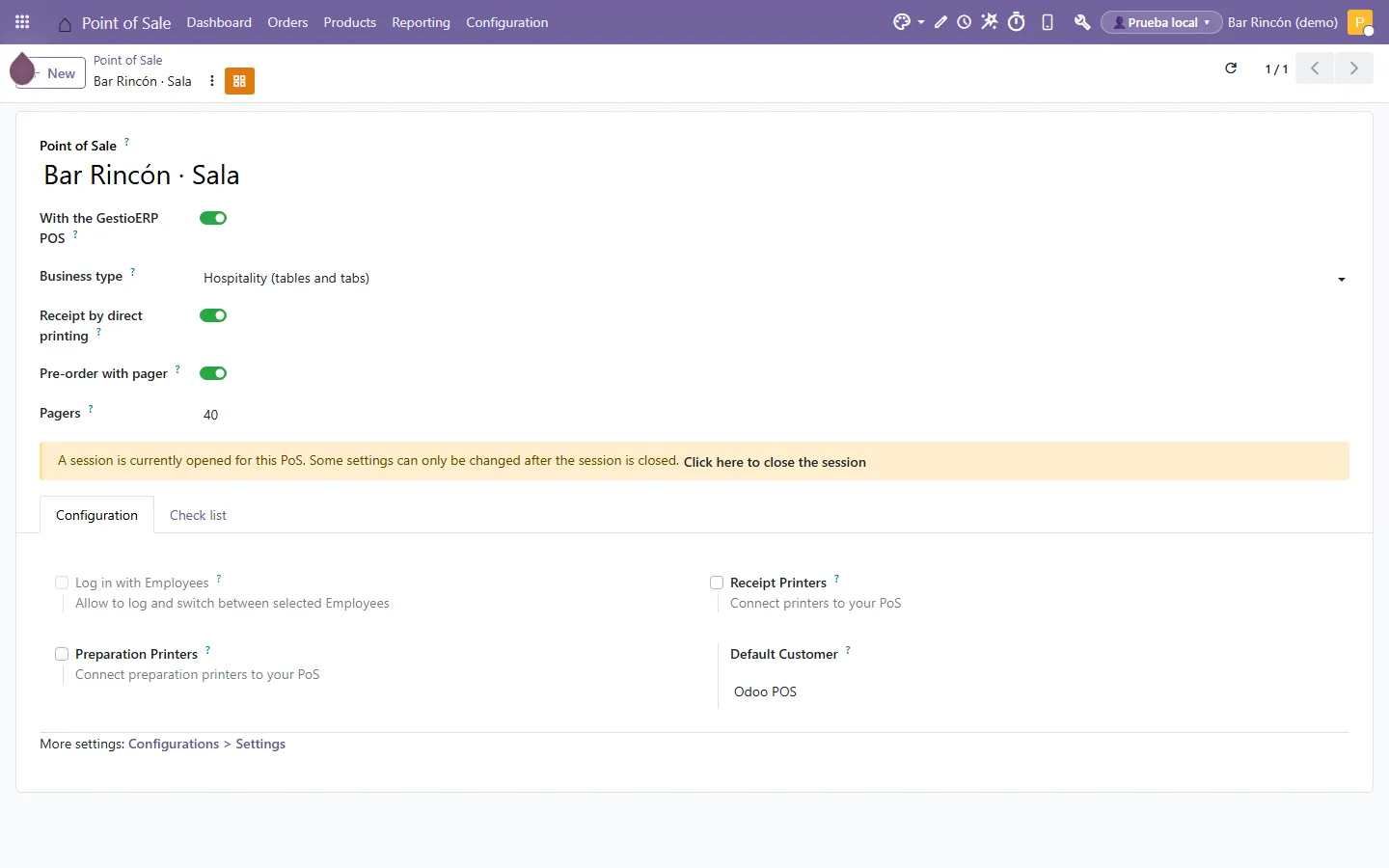
The GERP ODOO POS does not print from the browser and does not use Odoo's IoT Box or ePOS printers: it sends the receipt to the Direct printing queue with the «Ticket del TPV» action (key ticket-tpv) and the GestioERP for Windows bridge on the computer with the printer prints it. It does not matter where you charge from (the PC, the tablet or the handheld): the receipt comes out on the till's thermal printer. When charging, it prints on its own if the till has «Receipt by direct printing» ticked; «Print ticket» and «Gift receipt» print it again, and the X and Z reports go to the same printer. Without Direct printing or without a printer, the receipt opens as a PDF.
- Install the receipt printer in the till computer's Windows, with GestioERP for Windows, and link it (Settings › Print bridge › «Register this PC»).
- In GERP ODOO, Documents › Direct printing › Printers › New: choose that computer, copy the exact printer name into «Name in Windows» (it is on the computer's form) and set the paper to «Ticket 80 mm».
- Save and press «Print a test».
- In Printer per action, on the «Ticket del TPV» (ticket-tpv) row, choose that printer. Otherwise the receipt goes to the default one, which is usually the A4.
- On the till form (Hospitality and POS › Configuration › POS registers, or the Odoo Point of Sale till), leave «Receipt by direct printing» ticked».
- Charge a test receipt and check in Print jobs that it is «Printed».
Order tickets: kitchen and bar printers per zone
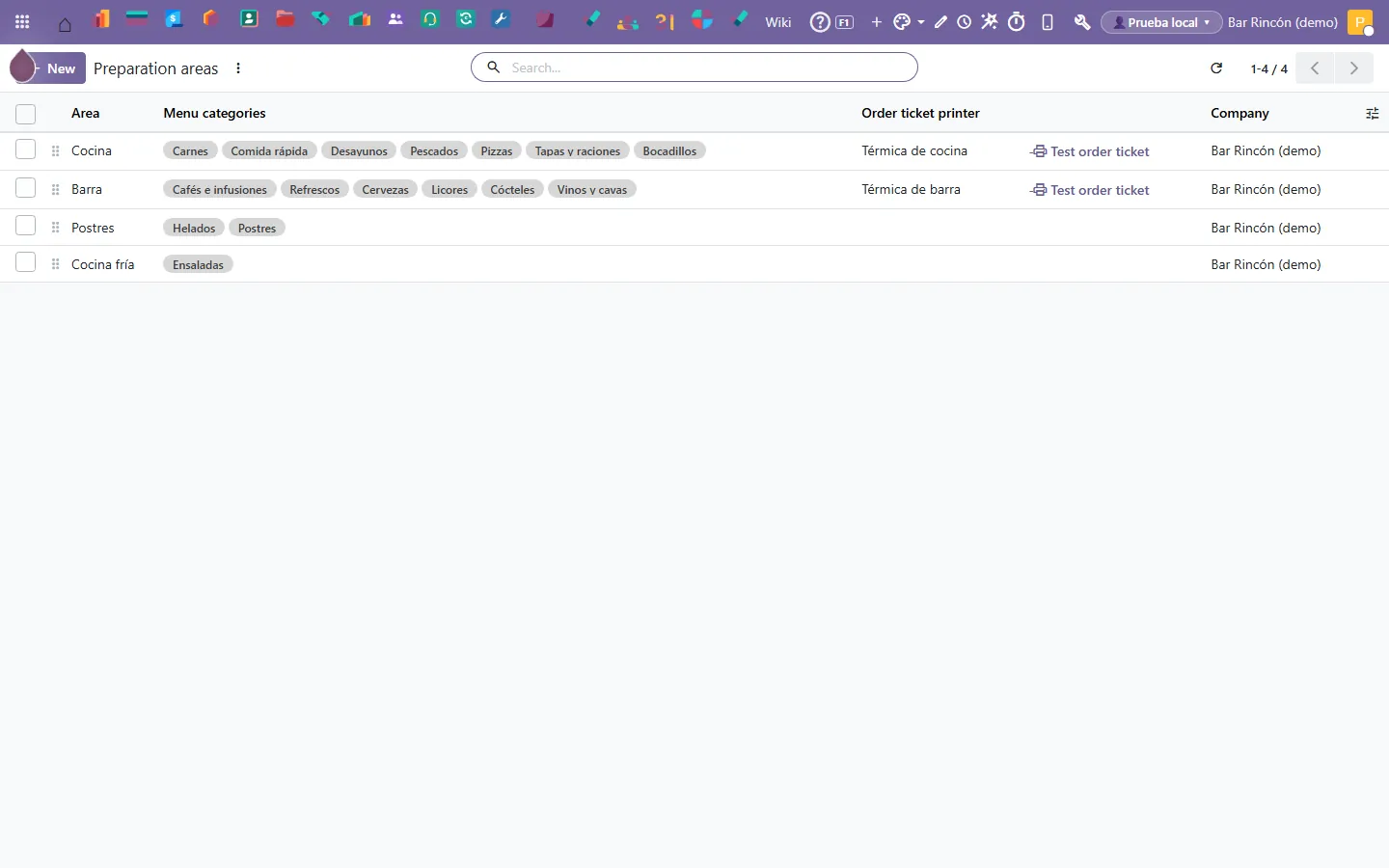
In hospitality, each menu category says in which zone it is prepared (kitchen, bar, desserts…) and each zone can have its order printer. When «Send to kitchen» is pressed (or when charging what had not been sent yet), what is new for each zone comes out on its printer, in large type, with the table or the pager, the time, the waiter, the guests and the notes; what was cancelled comes out separately. They are ESC/POS commands for 80 mm thermal printers, printed by the bridge on that printer's computer (installed in Windows or a network one by IP). If that computer is off, the order ticket waits in the queue and comes out when it is back. Each printer numbers its order tickets of the day.
- Add each order printer in Documents › Direct printing › Printers: the kitchen one and the bar one, each on its computer, or a network one by IP (tcp://192.168.1.60:9100).
- Open Hospitality and POS › Configuration › Preparation areas and create the zones: Kitchen, Bar, Desserts…
- On each zone choose its «Order ticket printer» and, if needed, the copies; without a printer, the zone only uses the kitchen screen.
- Press «Test order ticket» on the zone's row.
- In Hospitality and POS › Menu › Menu categories, give each category its «Preparation area».
- In the POS, open a table, add something from each zone and press «Send to kitchen»: one order ticket per zone comes out.
The cash drawer
The drawer is connected to the receipt printer (its cable, into the printer's drawer socket) and opens with the «pulse» command the printer passes on (ESC p 0 25 250, to pin 2, the most common one). GERP ODOO sends that command through Direct printing to the «Ticket del TPV» printer, so the drawer opens from any device in the premises: the PC, the tablet or the handheld. It opens on its own on cash payments if the till has «Open the drawer on cash payments» ticked, and with the «Drawer» button on the POS screen, shown to whoever has the «Open drawer and cash movements» permission and if there is a receipt printer. Offline it cannot be opened from the POS: it is opened with the key.
- Plug the drawer cable into the receipt printer's drawer socket (usually marked DK or Drawer).
- Check that the receipt printer is set on the «Ticket del TPV» action».
- On the till, leave «Open the drawer on cash payments» ticked».
- Give the «Open drawer and cash movements» permission to whoever must open it (Internal users › POS).
- In the POS, press «Drawer»: «Drawer opened» shows with the printer name.
- If it does not open, check the cable and that the printer prints receipts; the command is the pin 2 one and it cannot be changed from GERP ODOO.
The scale
The GERP ODOO POS does not read the weight from a scale connected by cable. It works in two ways: with scales that print labels, the label carries a barcode with the weight or the price inside, following the rules of the company's barcode nomenclature (the standard one: «21» with the weight in kilos and «23» with the price); when it is scanned, the POS finds the item by its code and sets the quantity. And with items marked «To Weigh», the POS asks for the weight when they are tapped and it is typed in, also with the PC keyboard. The rules travel with the till data: it also works offline.
- On the item, set as barcode the scale prefix and its code, with the weight part as zeros (for example 2100123000007, or just 2100123).
- If your scale uses another prefix, change it in the company's barcode nomenclature.
- Scan a scale label: the line goes in with its weight and its amount.
- To weigh at the counter without a label, mark the item «To Weigh» (Point of Sale tab) and, in the POS, type the weight when you tap it.
The customer display
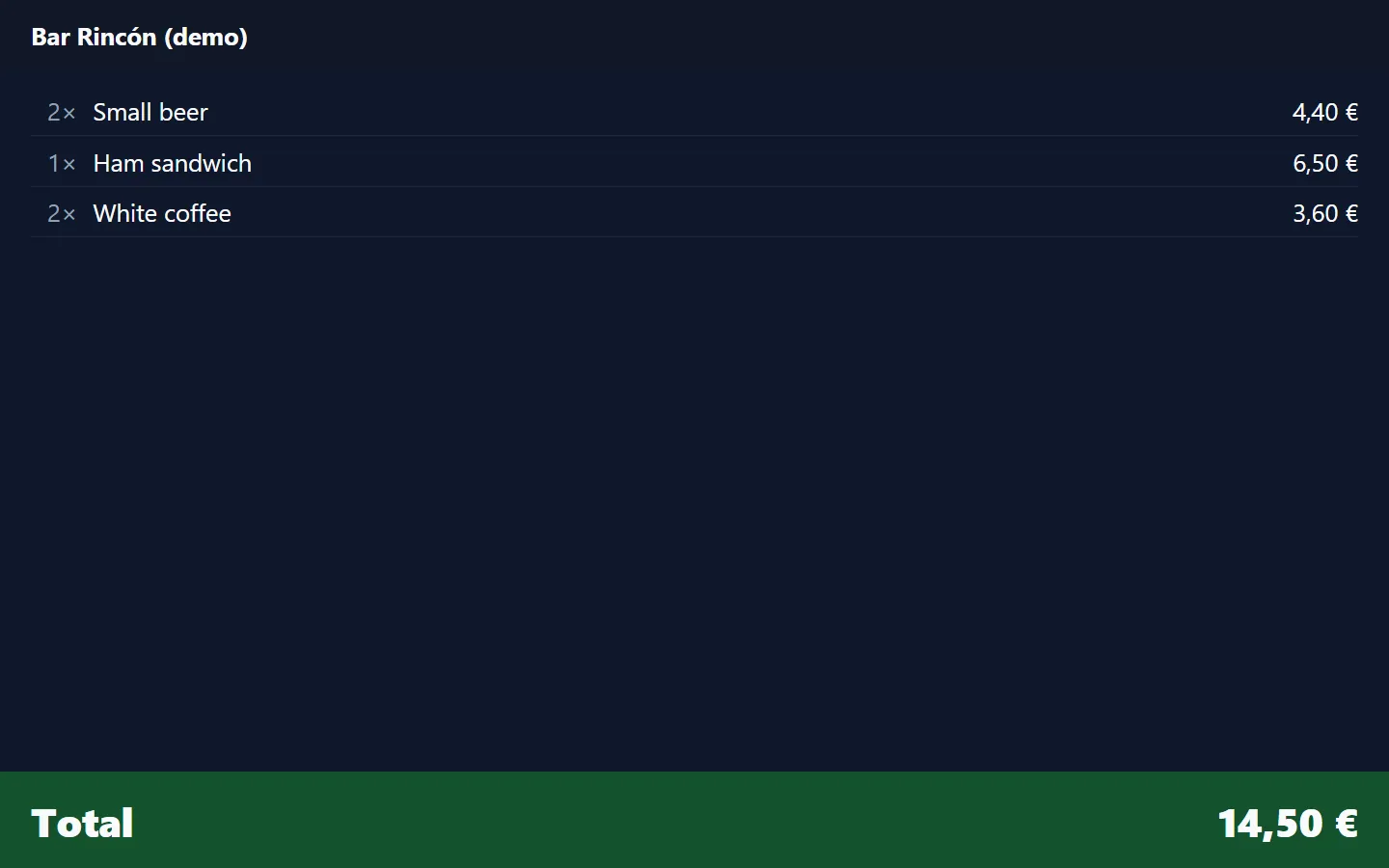
The 🖥 button at the top of the POS (on wide screens) opens the customer display in a separate window (/gerp/tpv/cliente): the company logo and name, each line as it is added and the total in large type. That window is moved to the second monitor, facing the customer, and set to full screen. It is fed by the POS on the same computer, without asking the server for anything: that is why it is opened from that POS and not from another device. Tablets and handhelds have no customer display.
- Connect the second monitor to the till PC and, in Windows, set it to «Extend these displays».
- In the POS, press 🖥 (Customer display).
- Drag the new window to the second monitor and set it to full screen.
- Add an item: it shows at once on the customer display, with the total.
The kitchen and bar screens, and the pick-up screen
The kitchen screen (/gerp/cocina, or Hospitality and POS › Kitchen and bar screens) shows each zone's order tickets with their time, one tab per zone; «Ready» and «Served» move them along and 🖨 prints the order ticket again on the zone's printer. The pick-up screen (/gerp/recogida, or Pick-up screen (pagers)) is for a TV facing the public in pre-order mode: the pagers being prepared and the ready ones, in large type. They open in a browser, on a TV with a browser or on a tablet with the GERP ODOO POS app, which lets you choose the kitchen and bar screen or the pick-up screen when it opens.
- On the kitchen tablet, install GERP ODOO POS, type your GERP ODOO address and choose the kitchen and bar screen.
- Sign in with your user and choose the zone tab (Kitchen, Bar…).
- For pick-up, open /gerp/recogida on the TV (or another tablet) in full screen.
- For pagers to show, turn on pre-order mode on the till form.
The barcode scanner
Any USB or Bluetooth scanner that types like a keyboard and ends with Enter works, which is how nearly all of them come. The POS always keeps the cursor in the search box: when a code is scanned, if it matches an item's barcode or reference, it goes straight into the receipt; a variant (size and colour) goes in with its own code and scale labels with their weight or price. With «3*» before the code, three units go in. On a handheld with a built-in scanner, the scanner must be in keyboard mode.
- Plug the scanner into the PC or pair its Bluetooth with the tablet.
- Test it in Notepad: it has to type the code and start a new line.
- In the POS, with the cursor in the search box, scan an item: it goes into the receipt.
- If it is not found, check the item's barcode on its form.
The tablet or handheld: the GERP ODOO POS app
For Android 8 or newer tablets and phones there is the GERP ODOO POS app (gerpodoo.com › Downloads). When it opens you type your GERP ODOO address and choose what the device shows: the POS, the kitchen and bar screen, the pick-up screen or the whole GERP ODOO. It keeps the session and the POS screen to open offline and keeps the screen always on. The tablet does not print by itself: the receipt, the order tickets and the drawer go through the printers of the computers with GestioERP for Windows, via Direct printing. Without Direct printing, the receipt opens as a PDF.
- Download the APK from gerpodoo.com › Downloads on the tablet and allow it to install.
- Open GERP ODOO POS, type your GERP ODOO address and choose «POS».
- Sign in with your user and choose the till.
- Charge a test receipt and check it comes out on the till printer (Print jobs).
- To keep going without internet, leave the till PC with GestioERP for Windows on, on the same network.
Printing when there is no internet
Without internet, the POS keeps selling and stores the sales on the device until the connection comes back. If the till PC has GestioERP for Windows, it acts as the local server and order tickets keep coming out on each zone's printer, because that PC prints them directly: they must be network printers by IP or be installed in its Windows with the same name. Offline, the payment receipt is not printed (and it is not printed when the connection returns either) and the drawer cannot be opened from the POS: it is opened with the key. What was already in the Direct printing queue waits and comes out on return, if 24 hours have not gone by.
- Set the kitchen and bar printers as network printers by IP (tcp://IP:9100) or install them in the till PC's Windows too, with the same name.
- Open the POS with a connection on the till PC: while it is open, it refreshes the data every 10 minutes.
- Keep the drawer key and a notepad at hand to write a receipt if the customer asks for it.
- When the connection is back, check in the POS that nothing is left to upload.
Questions
- How do I set up the POS receipt printer?
- Add the printer in Documents › Direct printing › Printers with the «Ticket 80 mm» paper, assign it to «Ticket del TPV» in Printer per action and leave «Receipt by direct printing» ticked on the till. The GestioERP for Windows bridge on that computer prints the receipt.
- Why does the POS receipt come out on the A4 printer?
- Because the «Ticket del TPV» action has no printer and the default one is used. In Documents › Direct printing › Printer per action, choose the receipt printer on the «Ticket del TPV» (ticket-tpv) row.
- How do I get order tickets printed in the kitchen and at the bar?
- In Hospitality and POS › Configuration › Preparation areas, give each zone its «Order ticket printer» and try «Test order ticket»; in Menu categories, give each category its zone. On «Send to kitchen», each zone gets its share on its printer.
- How is the cash drawer opened?
- The drawer is connected to the receipt printer and opens on cash payments (if the till has «Open the drawer on cash payments» ticked) or with the «Drawer» button, which needs the «Open drawer and cash movements» permission. Offline, with the key.
- Can I connect a scale to the POS?
- The weight is not read by cable. Scales that print labels with the weight or price in the barcode work (nomenclature rules «21» and «23»), and so do «To Weigh» items, where the POS asks for the weight and it is typed in.
- How do I set up the customer display?
- In the till PC's POS press 🖥: the customer display opens in another window, which you move to the second monitor and set to full screen. It shows each line and the total. Tablets have no customer display.
- How do I put the kitchen screen on a tablet?
- Install the GERP ODOO POS app, type your GERP ODOO address and choose the kitchen and bar screen (or the pick-up one). In a browser they are /gerp/cocina and /gerp/recogida.
- Which barcode scanner works with the POS?
- Any USB or Bluetooth one that types like a keyboard and ends with Enter. With the cursor in the POS search box, the code goes straight in if it matches the item's barcode or reference.